스마트시대
20 STATE MANAGEMENT 20.1 _noCamera 20.2 Router part One 20.3 Router part Two 20.4 Router part Three 20.5 Router part Four 20.6 InheritedWidget 20.7 InheritedWidget part Two 20.9 ChangeNotifier 20.10 ValueNotifier 20.11 Provider 본문
20 STATE MANAGEMENT 20.1 _noCamera 20.2 Router part One 20.3 Router part Two 20.4 Router part Three 20.5 Router part Four 20.6 InheritedWidget 20.7 InheritedWidget part Two 20.9 ChangeNotifier 20.10 ValueNotifier 20.11 Provider
스마트시대 2023. 5. 26. 19:0620.1 _noCamera

  bool _isSelfieMode = false;


----------------
  //iOS emulator 돌리기 위해
  late final bool _noCamera = kDebugMode && Platform.isIOS;
----------------


  //동영상 버튼용
  late final AnimationController _buttonAnimationController =
      AnimationController(


         enableAudio: false,
    );

    await _cameraController.initialize();


----------------
    //iOS만을 위한 설정
    await _cameraController.prepareForVideoRecording();
----------------


    _flashMode = _cameraController.value.flashMode;
    //iOS권한문제 수정
    // setState(() {});
    setState(() {});
  }


    if (!cameraDenied && !micDenied) {
      _hasPermission = true;
      await initCamera();
      setState(() {});
    }
  }

  @override
  void initState() {
    super.initState();


----------------
    //ios 에뮬레이터 위해
    if (!_noCamera) {
      initPermissions();
    } else {
      setState(() {
        _hasPermission = true;
      });
    }
   ----------------


  @override
  Widget build(BuildContext context) {
    return Scaffold(
      backgroundColor: Colors.black,
      body: SizedBox(
        width: MediaQuery.of(context).size.width,

        ------------------
        child: !_hasPermission
            //ios 에뮬레이터 위해
            // child: !_hasPermission || !_cameraController.value.isInitialized
                    ------------------


            ? Column(
                crossAxisAlignment: CrossAxisAlignment.center,
                mainAxisAlignment: MainAxisAlignment.center,


            : Stack(
                alignment: Alignment.center,
                children: [

                                    ------------------
                  //ios 에뮬레이터 위해
                  if (!_noCamera && _cameraController.value.isInitialized)
                    CameraPreview(_cameraController),

                  //ios 에뮬레이터 위해
                  if (!_noCamera)
                                      ------------------


                    Positioned(
                      top: Sizes.size20,
                      right: Sizes.size20,
                      child: Column(
                        children: [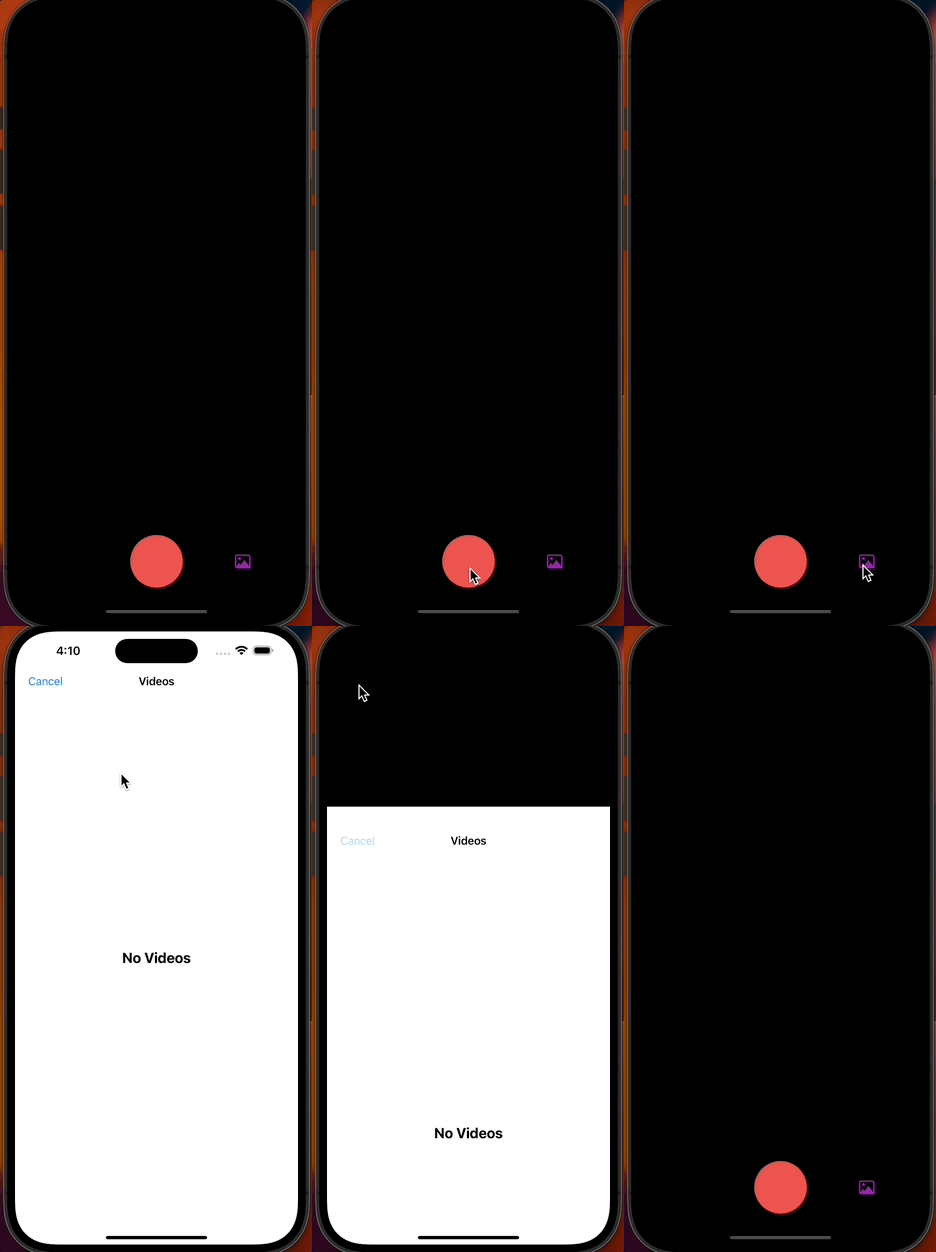
20.2 Router part One
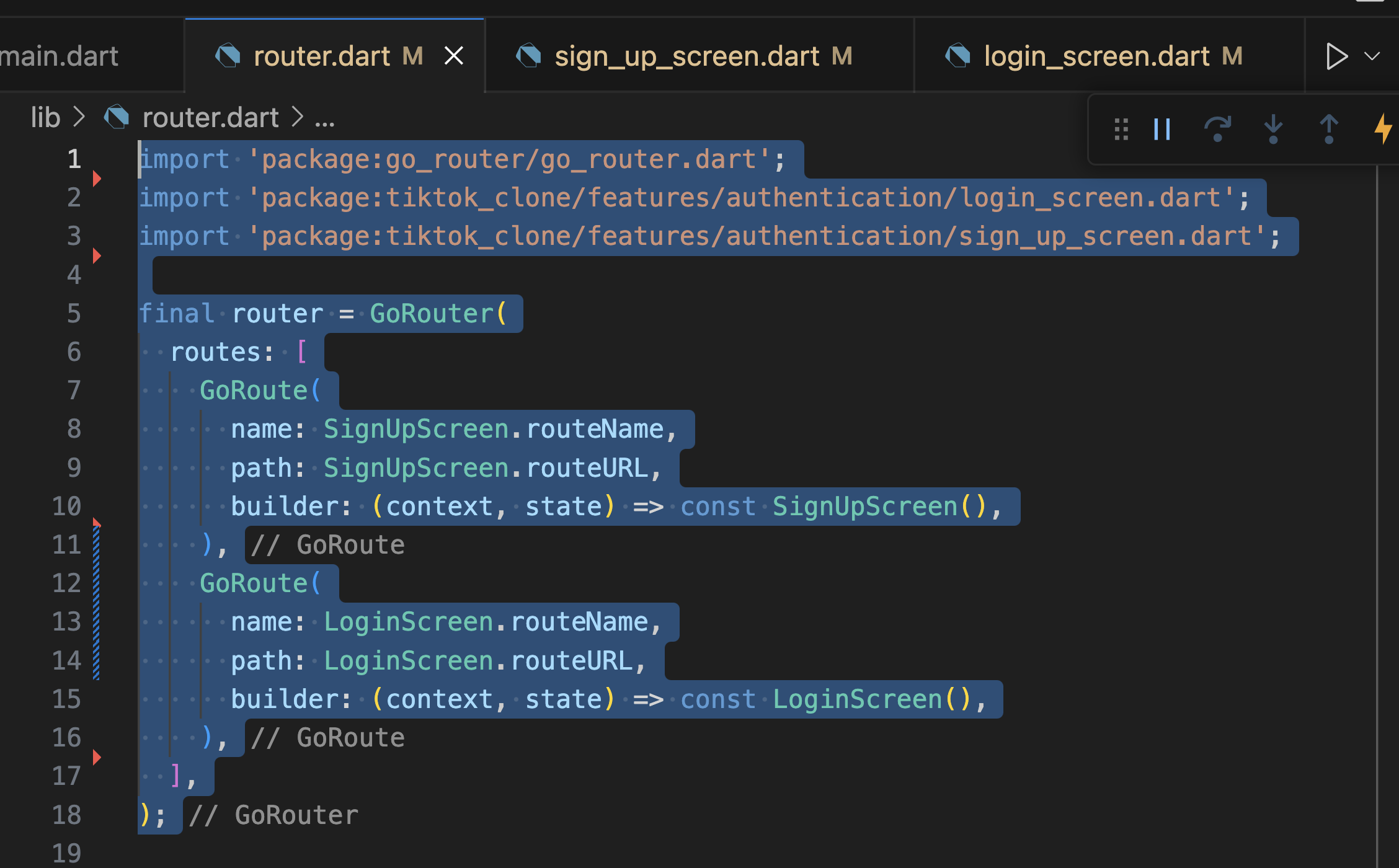
main_navigation 폴더 전체 여기가 옮기기

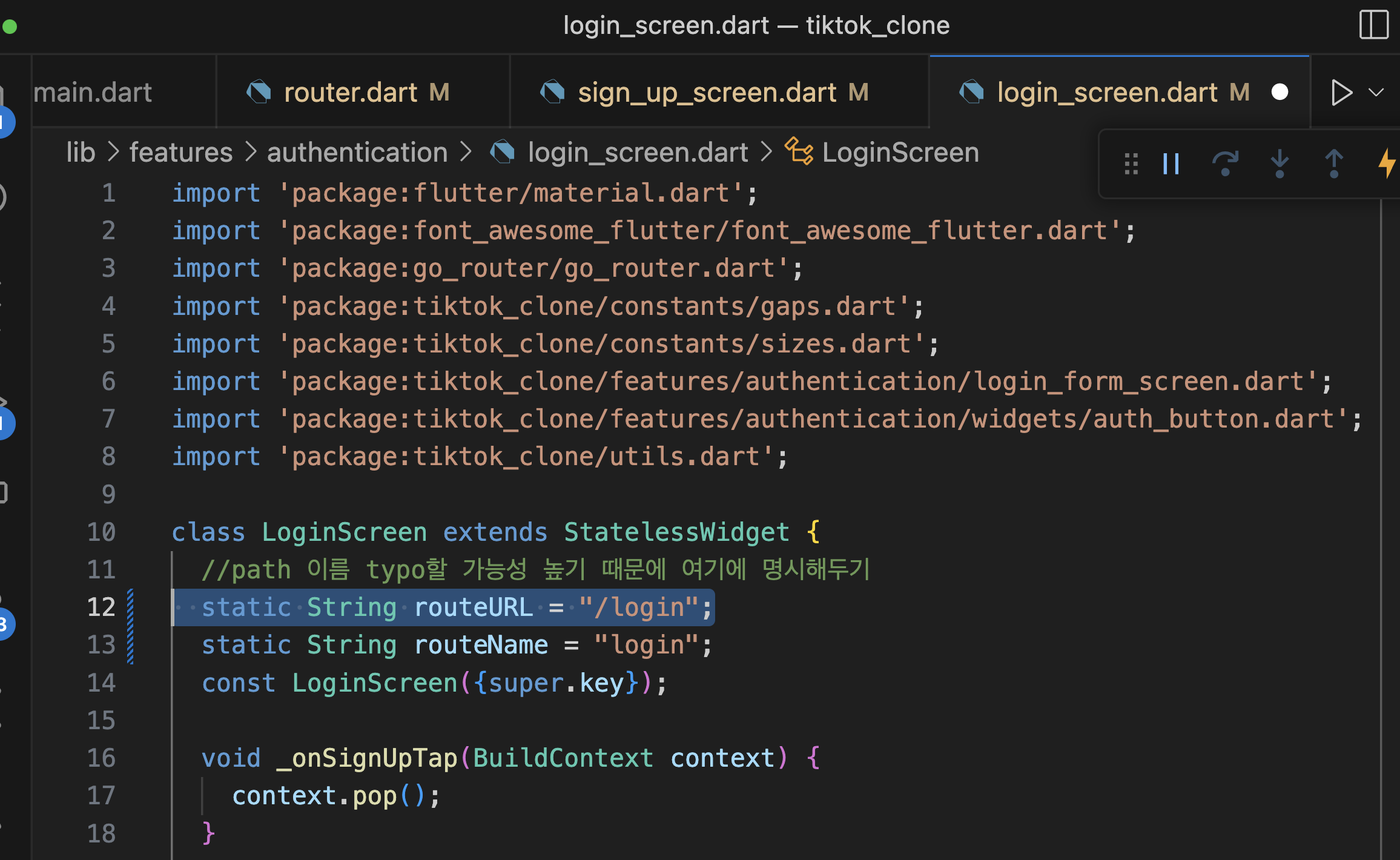
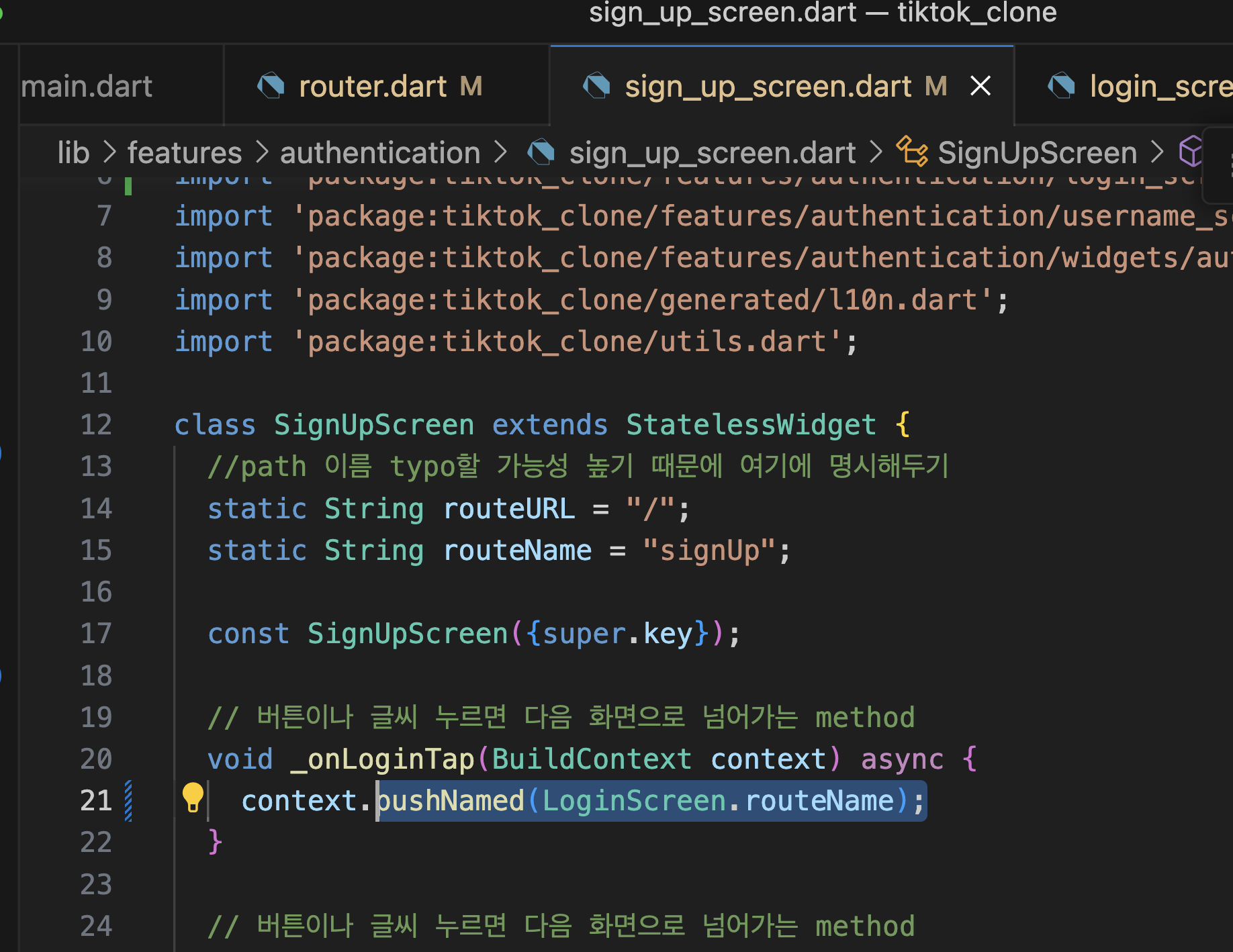
여기서 빼먹은 설정이 있는데 login_screen의 루트는 sign_up_screenl이 아니기 때문에 이런식으로 표현

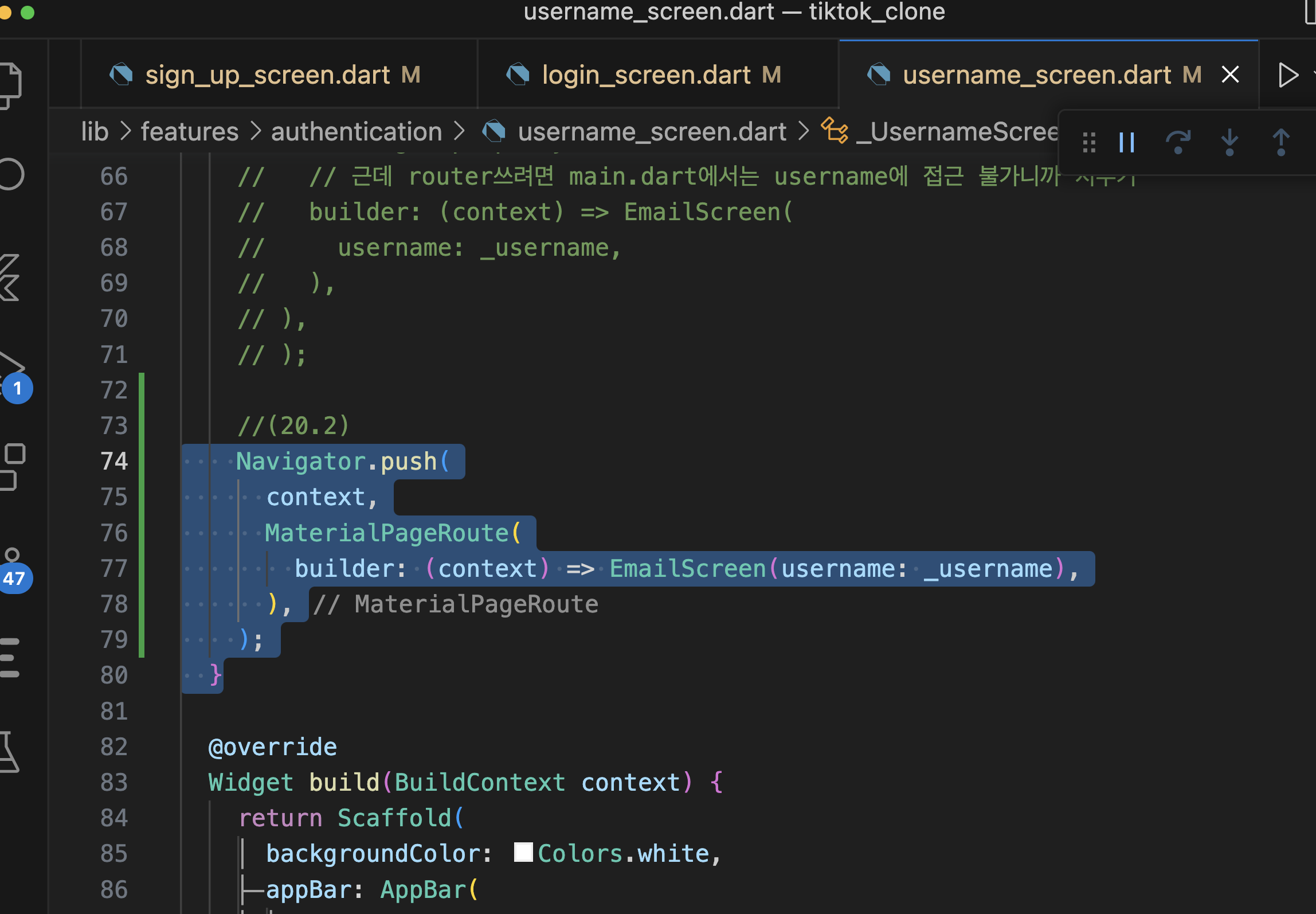
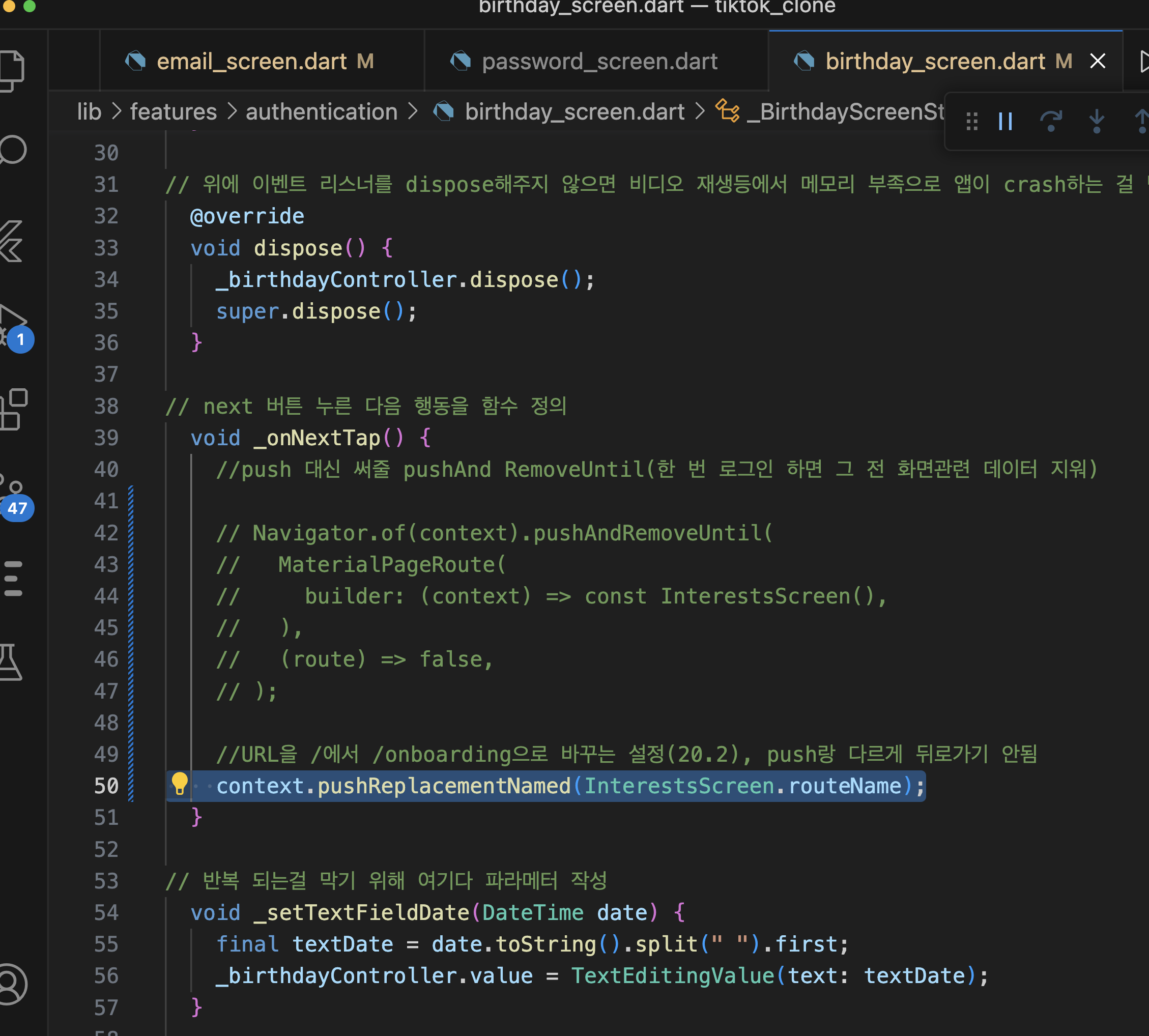
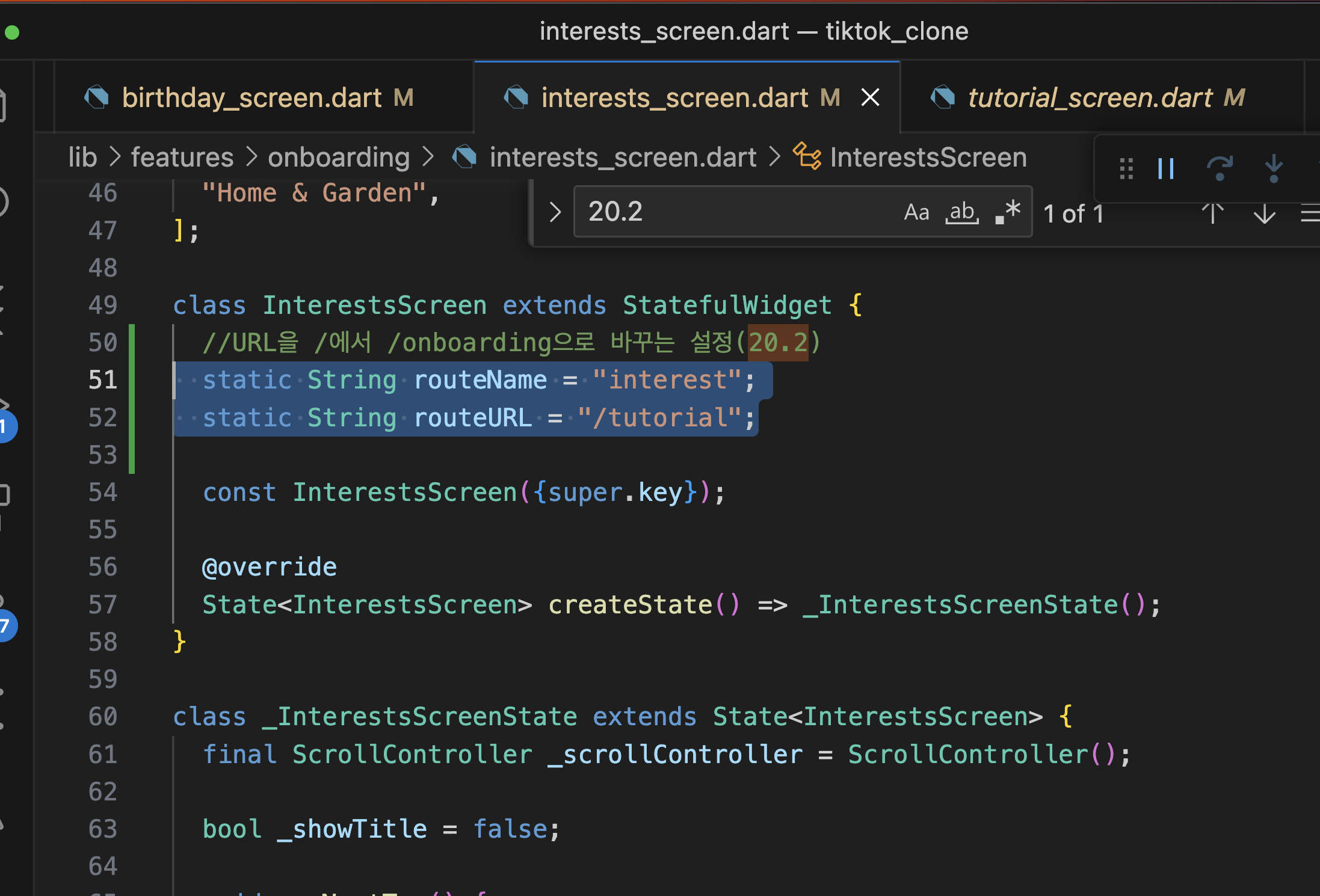
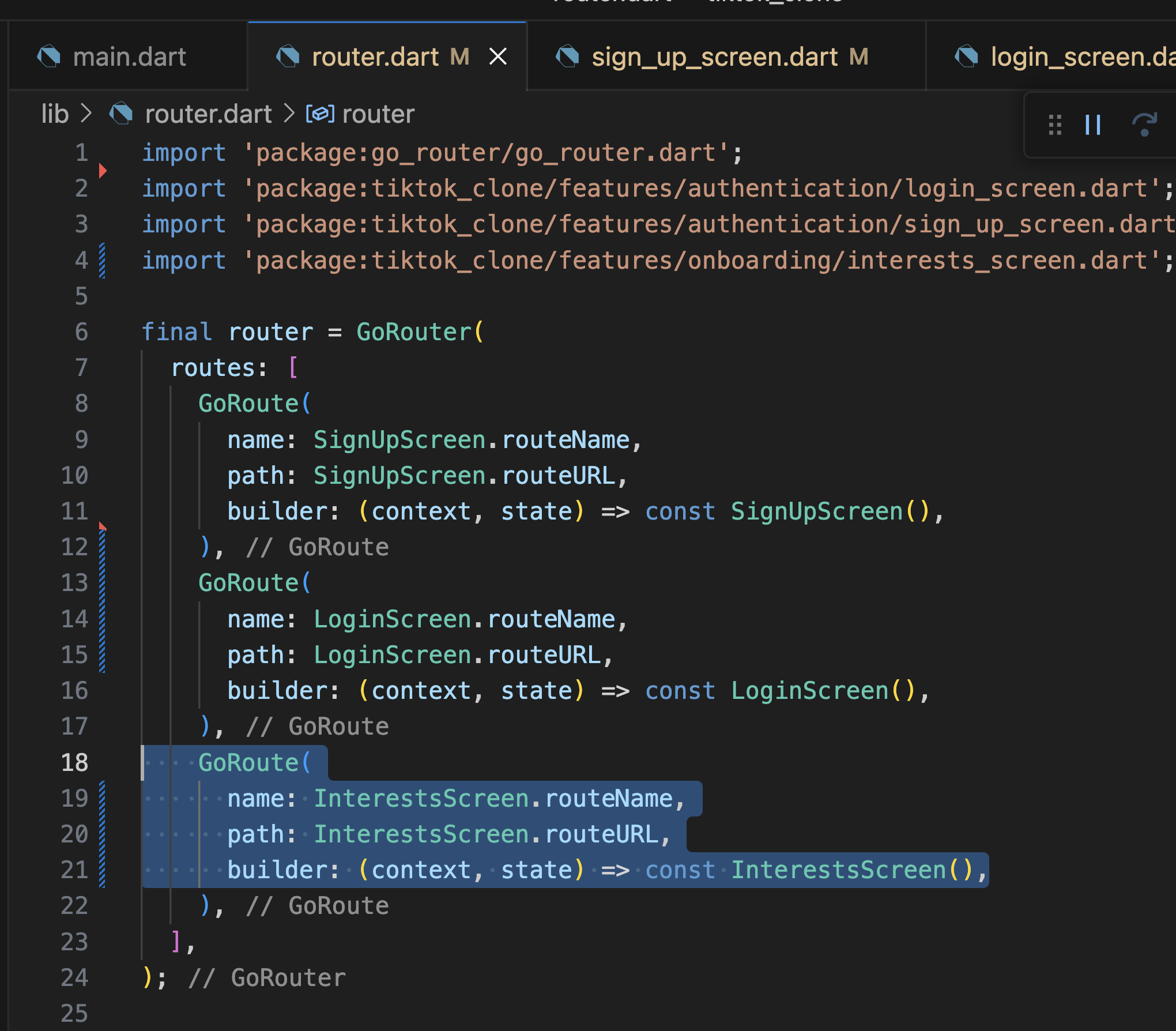

20.3 Router part Two
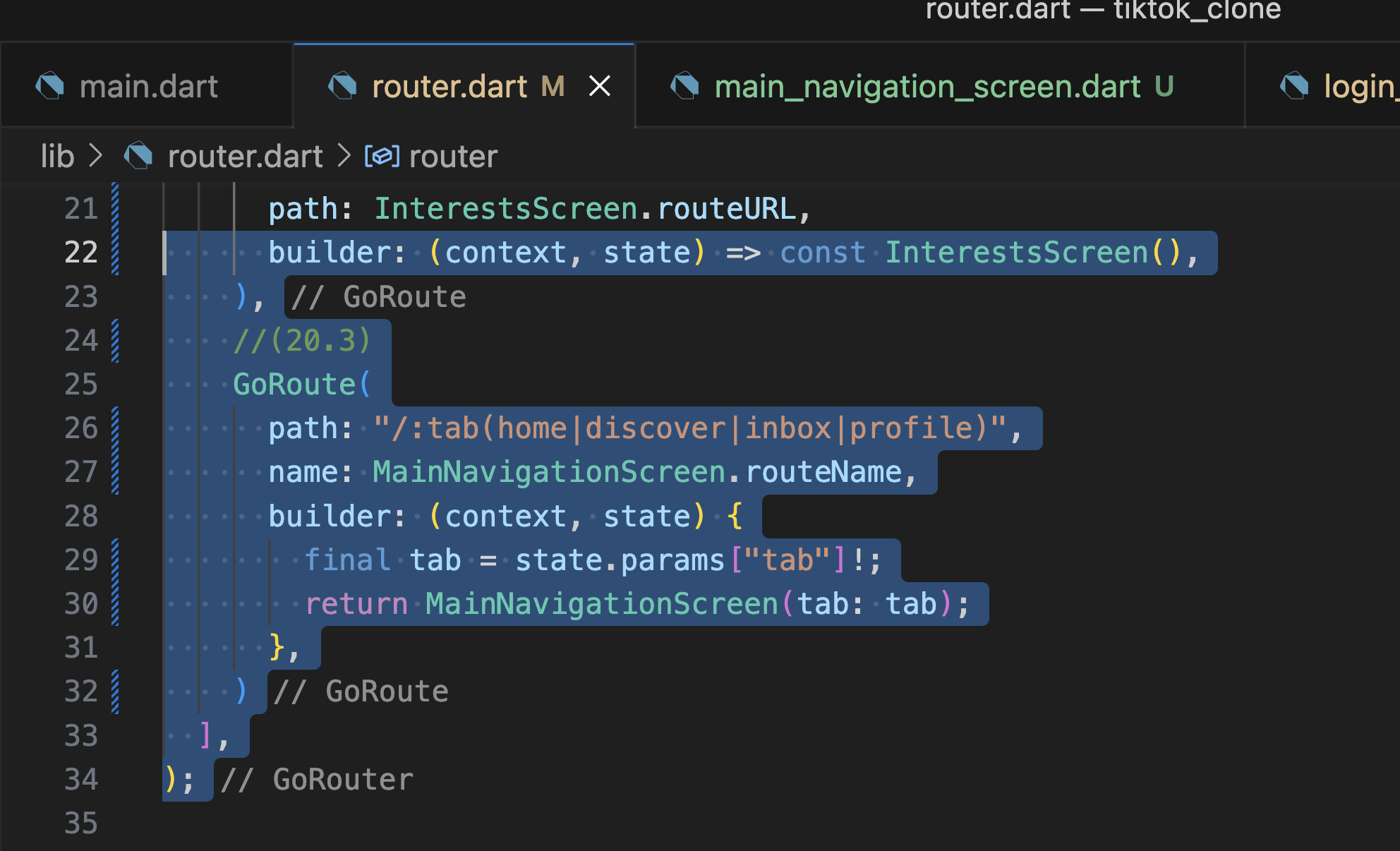

class MainNavigationScreen extends StatefulWidget {


-------------------
  //(20.3)
  static const String routeName = "mainNavigation";
  final String tab;

  const MainNavigationScreen({super.key, required this.tab});
-------------------


  @override
  State<MainNavigationScreen> createState() => _MainNavigationScreenState();
}

class _MainNavigationScreenState extends State<MainNavigationScreen> {
-------------------
//20.3
  final List<String> _tabs = [
    "home",
    "discover",
    "XXXX", //유저가 비오 찍을 가짜 tab
    "inbox",
    "profile",
  ];
-------------------


  //제일 먼저 표시되는 _selectedIndex 화면
  // int _selectedIndex = 1;


-------------------
  //(20.3)
  late int _selectedIndex = _tabs.indexOf(widget.tab);
-------------------


  void _onTap(int index) {
  -------------------
    //(20.3)
    context.go("/${_tabs[index]}");
    -------------------
    setState(() {
      _selectedIndex = index;
    });
  }


  //event listener 함수
  void _onPostVideoButtonTap() {
    Navigator.of(context).push(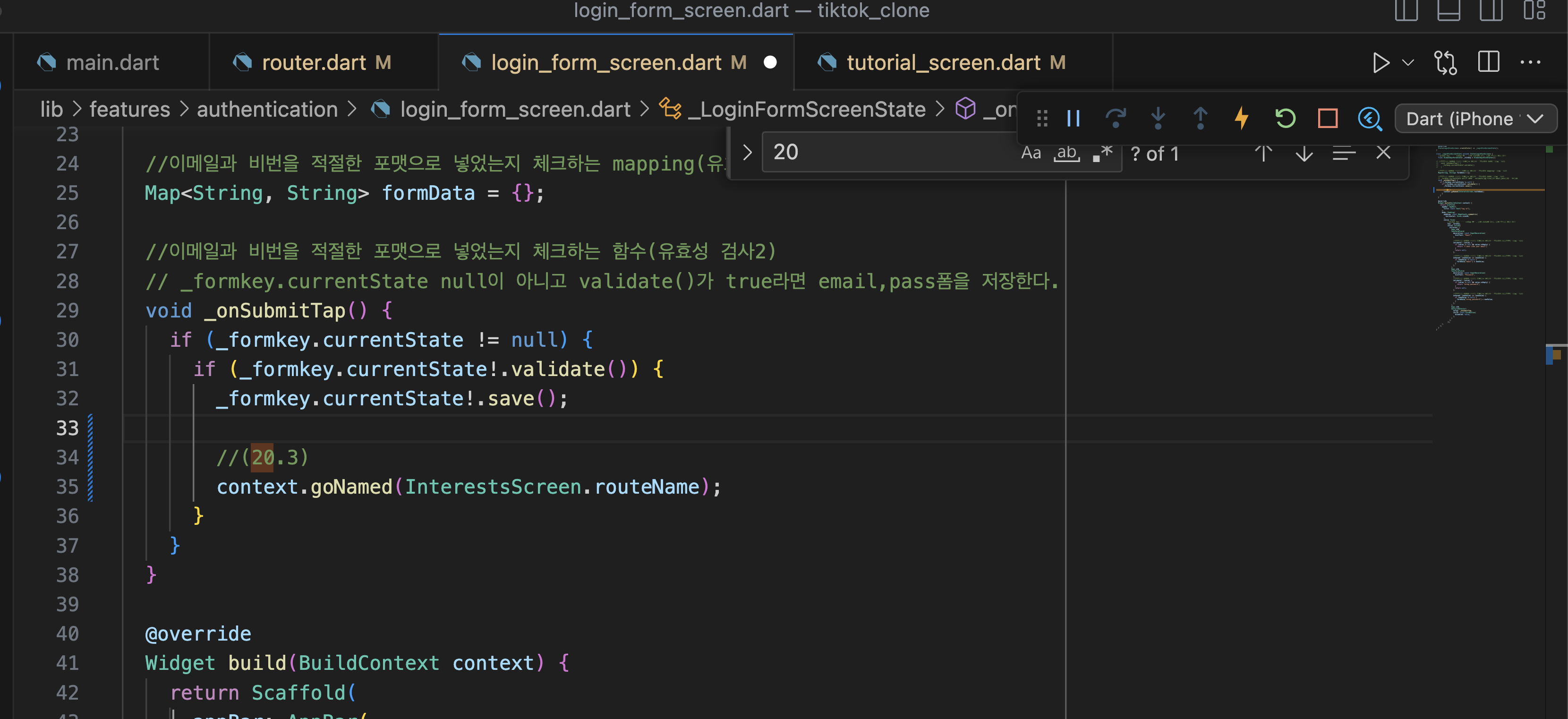
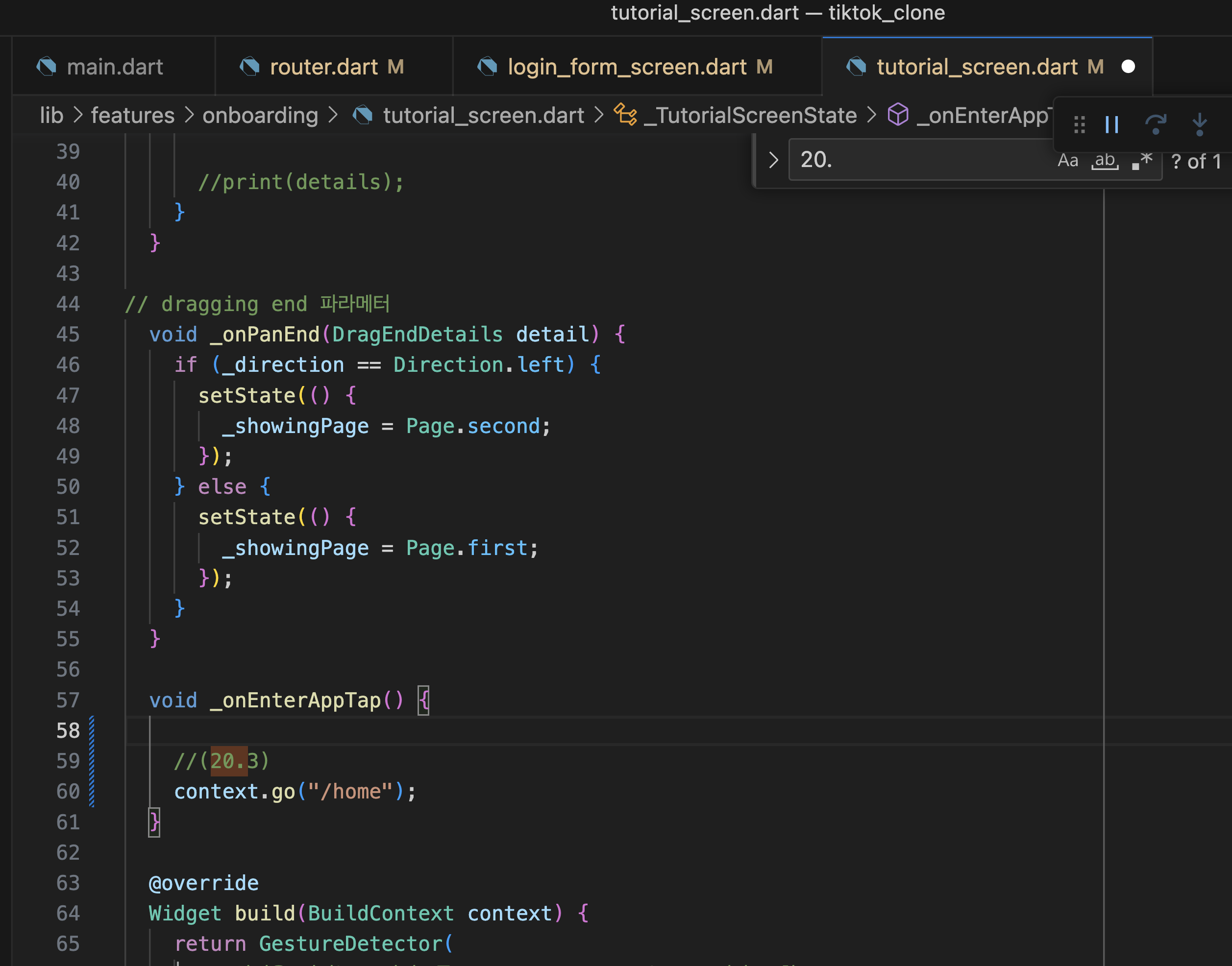

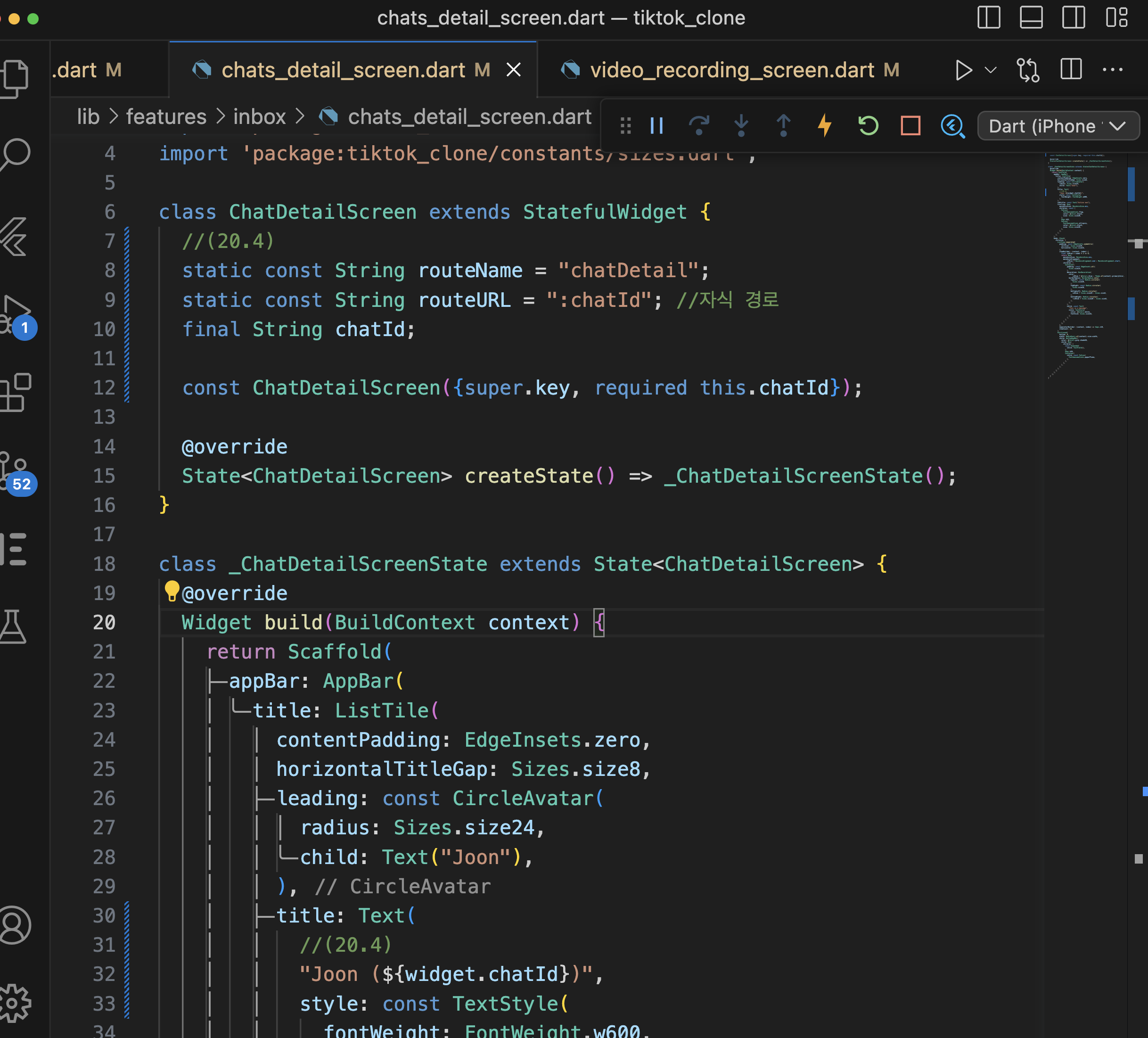
20.4 Router part Three

    //(20.4)
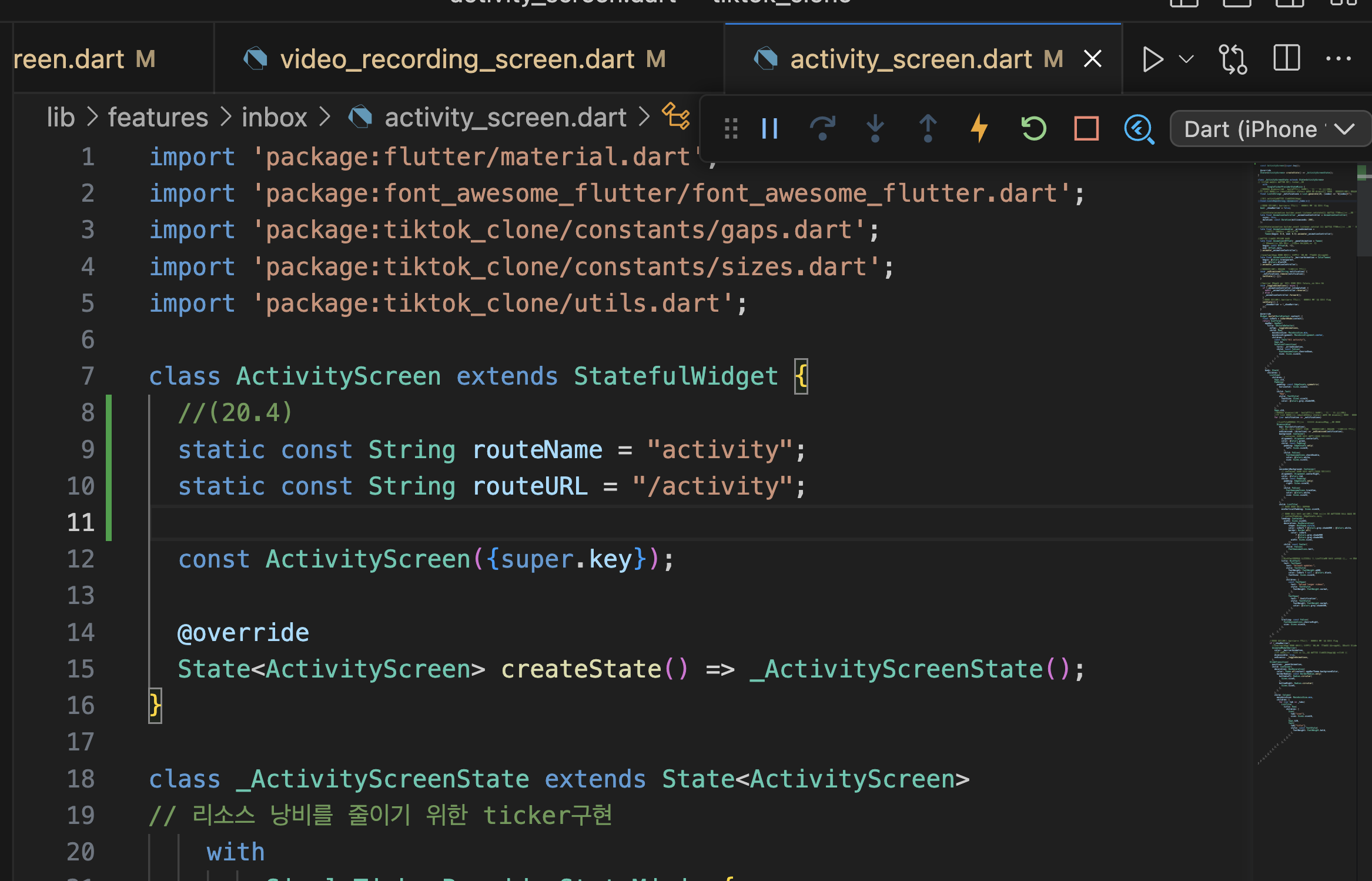
    GoRoute(
      name: ActivityScreen.routeName,
      path: ActivityScreen.routeURL,
      builder: (context, state) => const ActivityScreen(),
    ),
    GoRoute(
      name: ChatsScreen.routeName,
      path: ChatsScreen.routeURL,
      builder: (context, state) => const ChatsScreen(),
      //nested router
      routes: [
        GoRoute(
          name: ChatDetailScreen.routeName,
          path: ChatDetailScreen.routeURL,
          builder: (context, state) {
            final chatId = state.params["chatId"]!;
            return ChatDetailScreen(
              chatId: chatId,
            );
          },
        ),
      ],
    ),
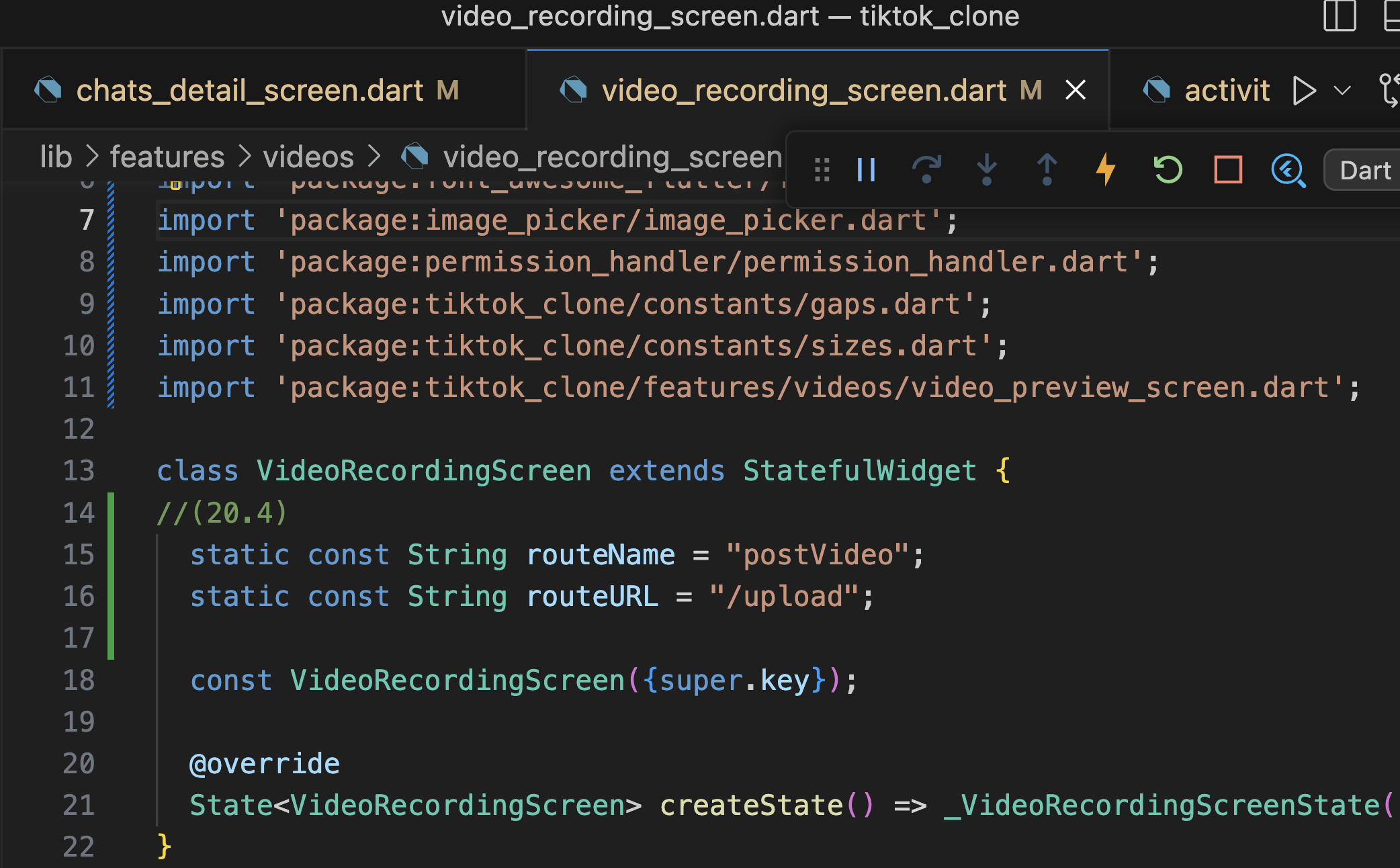
    GoRoute(
      name: VideoRecordingScreen.routeName,
      path: VideoRecordingScreen.routeURL,
      builder: (context, state) => const VideoRecordingScreen(),
    ),
  ],
);
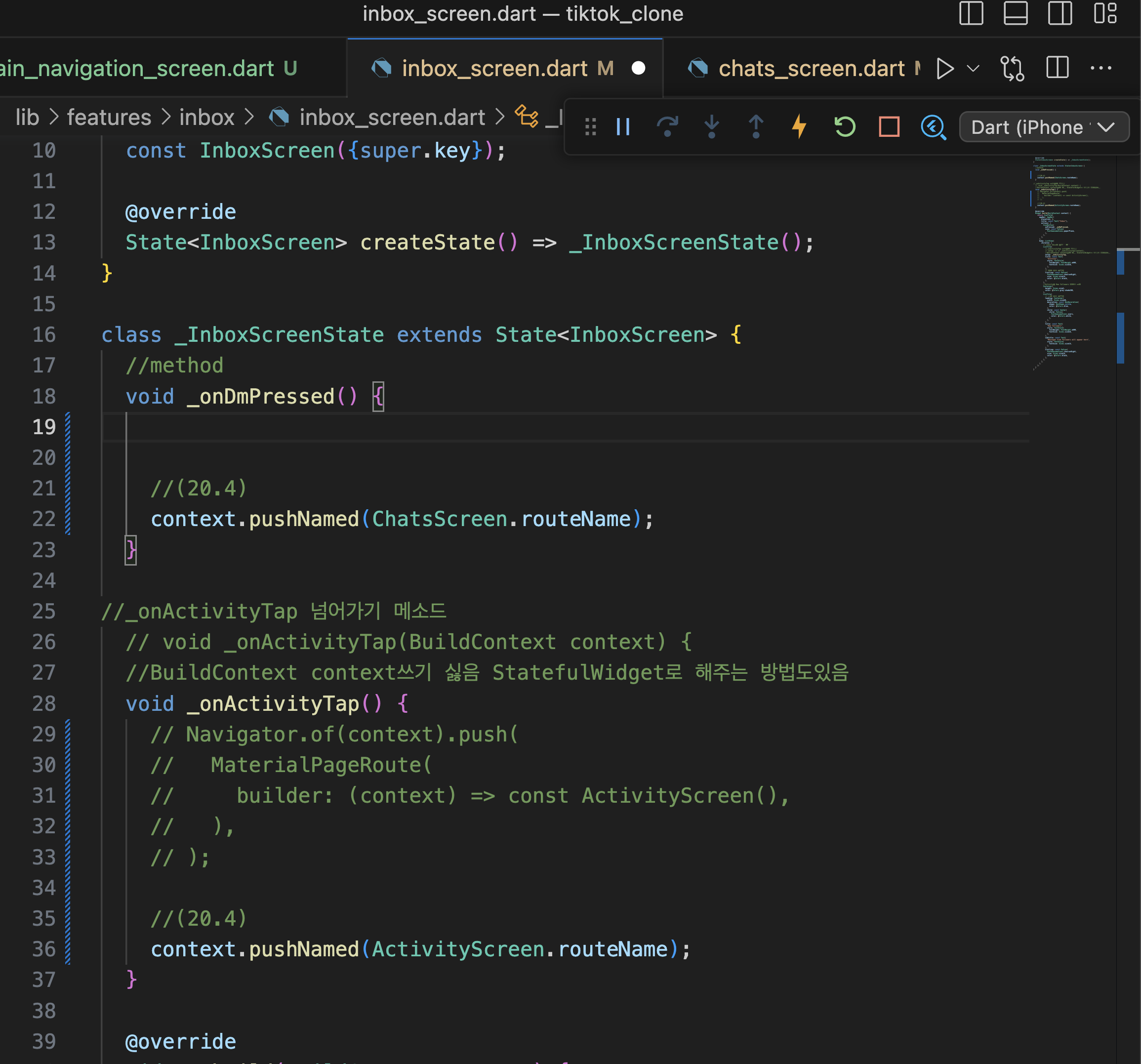
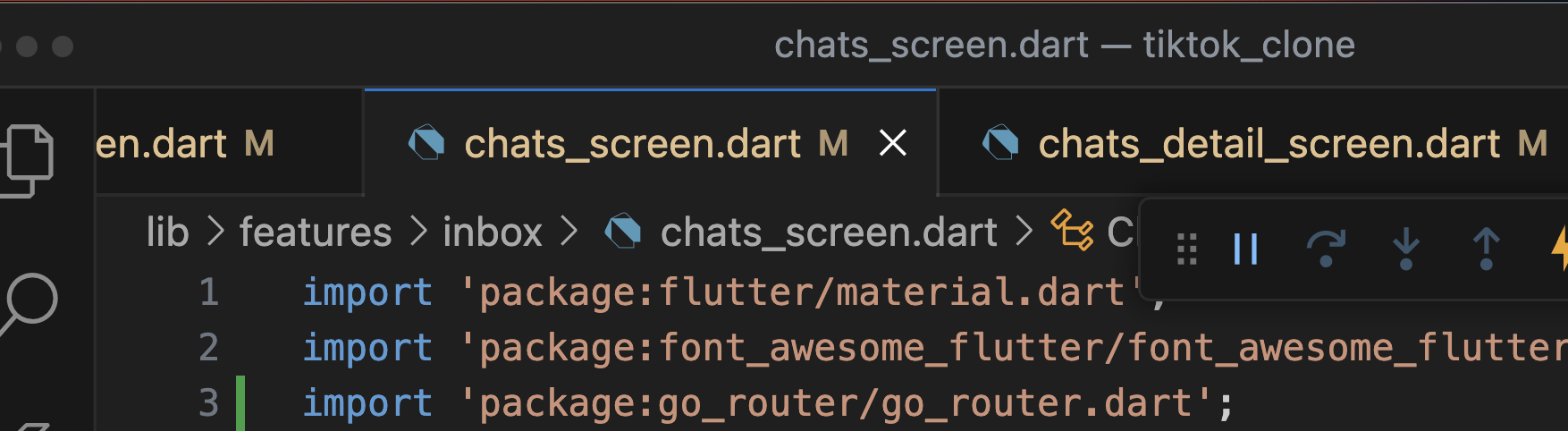
class ChatsScreen extends StatefulWidget {


---------------
  //(20.4)
  static const String routeName = "chats";
  static const String routeURL = "/chats";
---------------
  const ChatsScreen({super.key});

  @override
  State<ChatsScreen> createState() => _ChatsScreenState();
}


        duration: _duration,
      );
      _items.removeAt(index);
    }
  }


-----------------
  //(20.4)
  void _onChatTap(int index) {
  ---------------

---------------
    //(20.4)1
    context.pushNamed(ChatDetailScreen.routeName, params: {"chatId": "$index"});
    //(20.4)2
    // context.push("1");
  }
---------------


  // _addItem, _deleteItem 똑같이 적용하기 위해 여기로 옮김
  Widget _makeTile(int index) {
    return ListTile(
      // 메소드 추가
      onLongPress: () => _deleteItem(index),


---------------
      //(20.4)
      onTap: () => _onChatTap(index),
      ---------------


      leading: const CircleAvatar(
        radius: 30,
        child: Text("joon"),
      ),
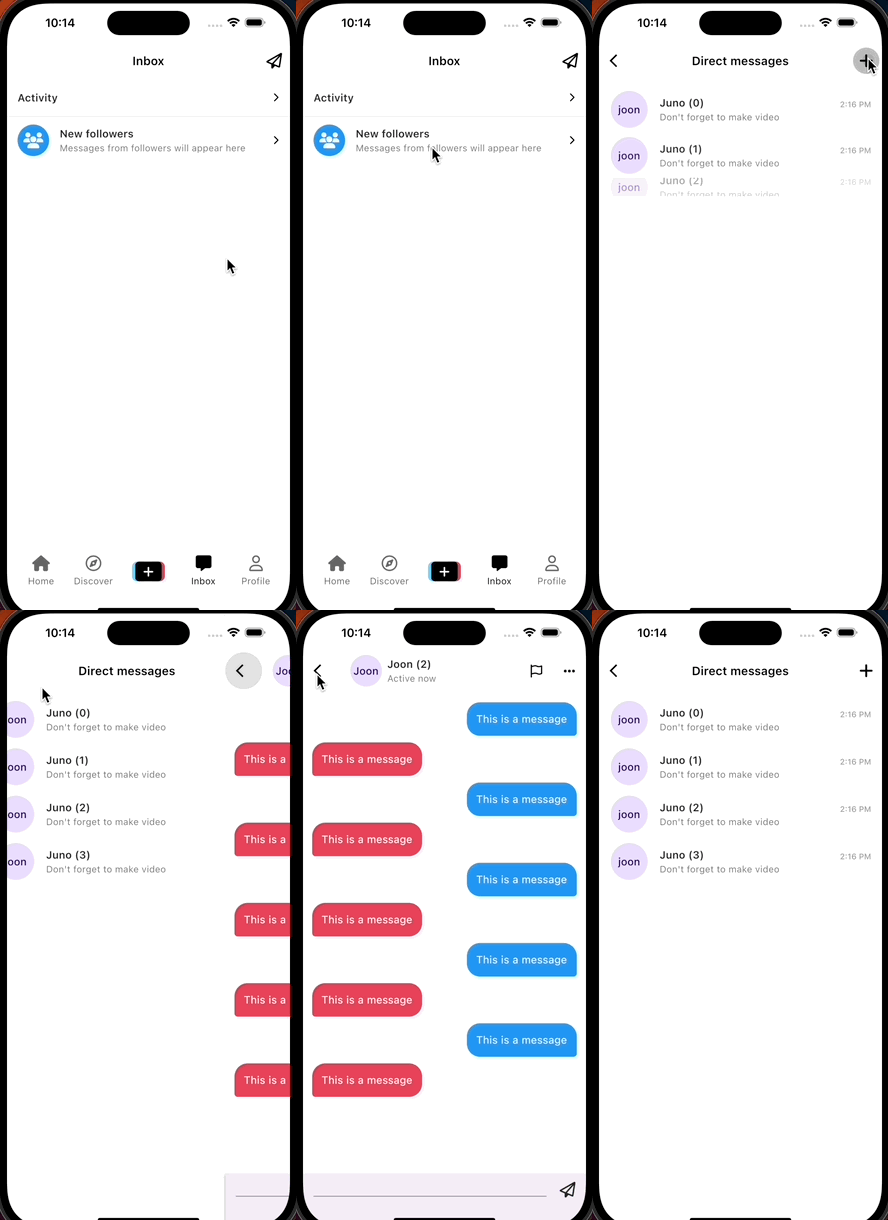
웹도 똑같이 적용되었음(URL도)
video관련 설정 다음 회차떄 계속

20.5 Router part Four
    GoRoute(
      name: VideoRecordingScreen.routeName,
      path: VideoRecordingScreen.routeURL,

      ------------------
      //위에서 밑으로 애니메이션(20.5)
      pageBuilder: (context, state) => CustomTransitionPage(
        transitionDuration: const Duration(
          microseconds: 400,
        ),
        child: const VideoRecordingScreen(),
        transitionsBuilder: (context, animation, secondaryAnimation, child) {
          final position = Tween(begin: const Offset(0, 1), end: Offset.zero)
              .animate(animation);
          return SlideTransition(
            position: position,
            child: child,
          );
        },
      ),
    ),
  ],
);
     isPicked: false,
        ),
      ),
    );
  }

  @override
  void dispose() {
    _progressAnimationController.dispose();
    _buttonAnimationController.dispose();


--------------
    //ios 에뮬레이터 위해(20.5)
    if (!_noCamera) {
      _cameraController.dispose();
    }
--------------


    super.dispose();
  }

  @override
  // camera가 백그라운드에 있을때는 dispose하는 것
  void didChangeAppLifecycleState(AppLifecycleState state) {

  --------------
    //ios 에뮬레이터 위해(20.5)
    if (_noCamera) return;
    --------------


               : Stack(
                alignment: Alignment.center,
                children: [
                  //ios 에뮬레이터 위해
                  if (!_noCamera && _cameraController.value.isInitialized)
                    CameraPreview(_cameraController),


---------------------------
                  //(20.5)
                  const Positioned(
                    top: Sizes.size40,
                    left: Sizes.size20,
                    child: CloseButton(
                      color: Colors.white,
                    ),
                  ),
                  ---------------------------


                  //ios 에뮬레이터 위해
                  if (!_noCamera)
                    Positioned(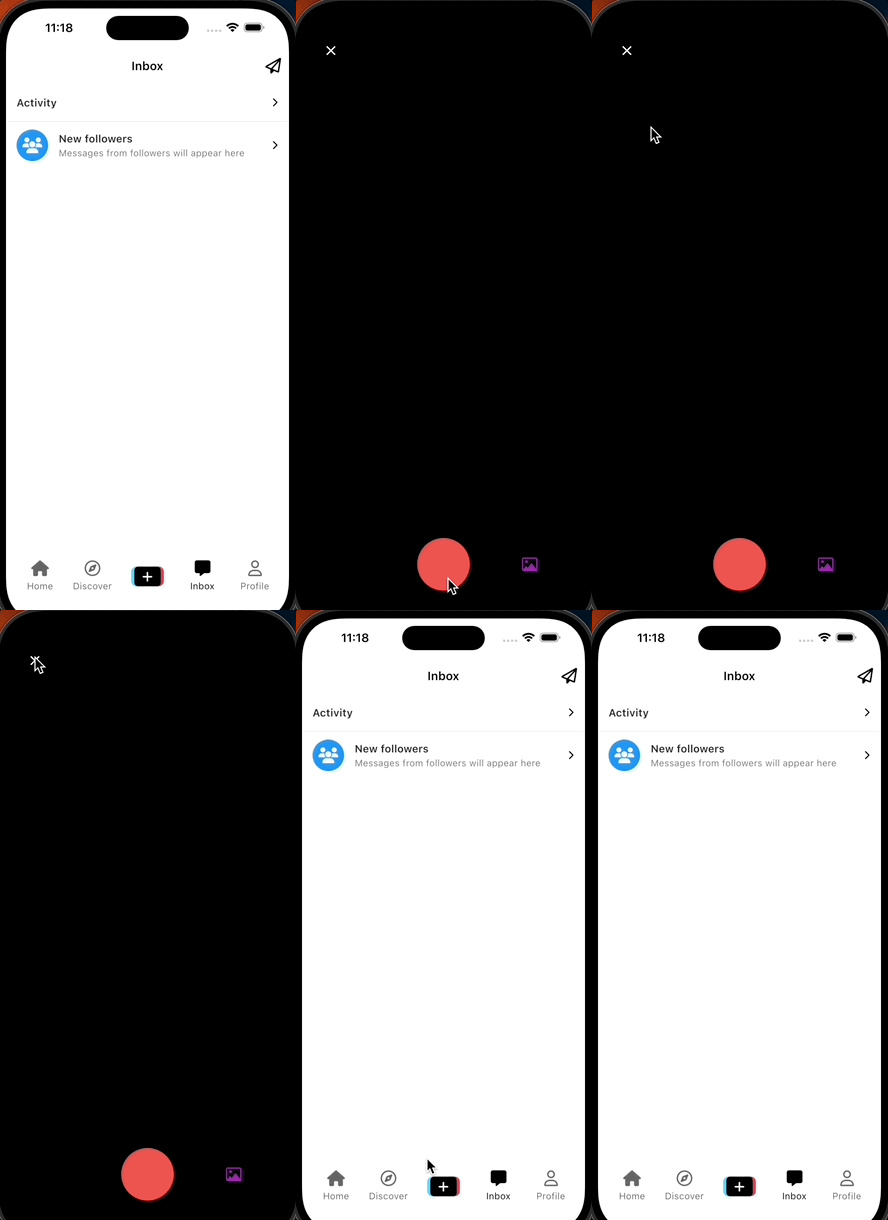
20.6 InheritedWidget
import 'package:flutter/widgets.dart';

class VideoConfig extends InheritedWidget {
  const VideoConfig({super.key, required super.child});

  final bool autoMute = false;

  static VideoConfig of(BuildContext context) {
    return context.dependOnInheritedWidgetOfExactType<
        VideoConfig>()!; //()! dart에서 VideoConfig하나는 찾을 수 있을거라고 말하는거
  }

  @override
  //너의 위젯을 rebuild 할지 말지 정해주는 기능
  bool updateShouldNotify(covariant InheritedWidget oldWidget) {
    return true;
  }
}

20.7 InheritedWidget part Two
InheritedWidget은 앱 전체에 데이터를 공유하지만 엡데이트하지는 못한다.
그래서 statefulwidget이랑 조합해서 써야함.
(데이터와 데이터를 변경할 수 있는 메소드가 있어 데이터가 변경되면 statefulWidget도 rebuild된다. 즉 다른 모든 화면과 위젯에게 데이터와 데이터 변경 메소드 접근권한을 주기 위해서 InhtertedWidget을 쓰는 것임)
따라서 InhtertedWidget은 단지 데이터 전달자일 뿐이고 우리에게 데이터를 제공하고 데이터를 수정할 방법을 제공하지(데이터와 데이터 수정 메소드에 접근할 권한을 주는 것) 데이터 자체가 InhtertedWidget에서 온게 아니다.
해당 데이터가 수정되면 statefulWidget이 다시 render(전체 앱을)되고 statefulWidget의 데이터를 사용하는 화면들도 다시 render된다.
밑에 구조 잘이해해야 함
import 'package:flutter/widgets.dart';

class VideoConfigDate extends InheritedWidget {
  final bool autoMute;

  final void Function() toggleMuted;

  const VideoConfigDate({
    super.key,
    required this.toggleMuted,
    required this.autoMute,
    required super.child,
  });

  static VideoConfigDate of(BuildContext context) {
    return context.dependOnInheritedWidgetOfExactType<
        VideoConfigDate>()!; //()! dart에서 VideoConfigDate하나는 찾을 수 있을거라고 말하는거
  }

  @override
  //너의 위젯을 rebuild 할지 말지 정해주는 기능
  bool updateShouldNotify(covariant InheritedWidget oldWidget) {
    return true;
  }
}

//(20.7)
class VideoConfig extends StatefulWidget {
  final Widget child;
  const VideoConfig({
    super.key,
    required this.child,
  });

  @override
  State<VideoConfig> createState() => _VideoConfigState();
}

class _VideoConfigState extends State<VideoConfig> {
  //(20.7)데이터를 업데이트 할 수 있는 여기로 옮겨야 함
  bool autoMute = false;
  void toggleMuted() {
    setState(() {
      autoMute = !autoMute;
    });
  }

  @override
  Widget build(BuildContext context) {
    return VideoConfigDate(
      toggleMuted: toggleMuted,
      autoMute: autoMute,
      child: widget.child,
    );
  }
}
Main.dart에서 Statefulwideget인 VideoConfig를 앱 맨 위에 두고
MaterialApp을 자식으로 두고 자식을 가져와 video_config.dart의 child: widget.child,에 놓고
이 자식을 InhtertedWidget(VideoConfigData)에 제공한다.
그리고 statefulWidget의 상태를 수정할 수 있는 메소드(toggleMuted: toggleMuted,)를 InhtertedWidget(VideoConfigDate)에게 주고 데이터도 넘겨준다.
그렇게 받은 데이터를 하지고 InhtertedWidget은 데이터를 공유하고 데이터를 수정하는 방법을 다른 모든 화면에 공유한다.

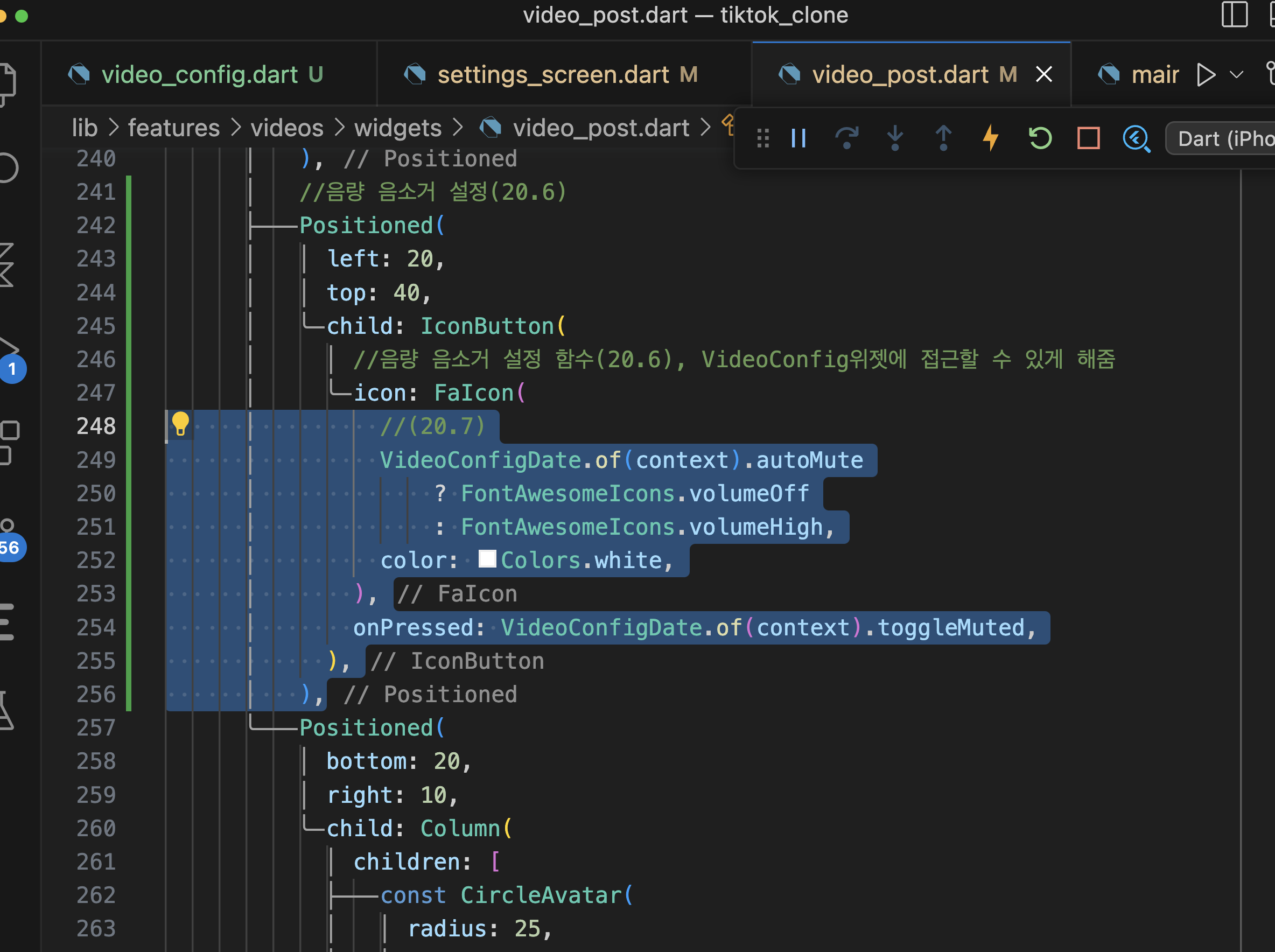

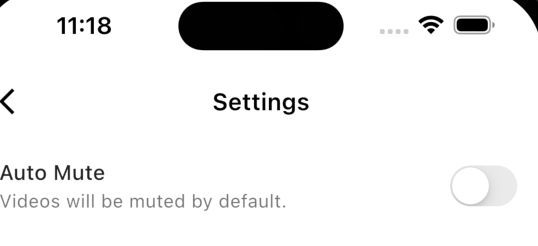

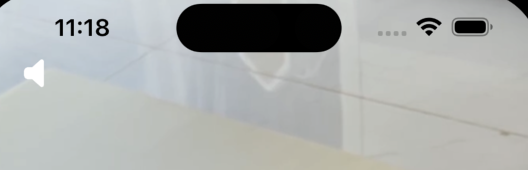
보다시피 상태관리가 잘되어 있음
20.9 ChangeNotifier

//(20.9)
import 'package:flutter/widgets.dart';

class VideoConfig extends ChangeNotifier {
  bool autoMute = false;

  void toggleAutoMute() {
    autoMute = !autoMute;
    //이게 밑에 코드(20.7,8)역할 해줌
    notifyListeners();
  }
}

final videoConfig = VideoConfig();
AnimatedBuilder를 넣어줌으로써 여기만 새로 rebuild해줌(방법1)

전체 위젯의 상태를 수정할 이벤트 리스너 추가(방법2)
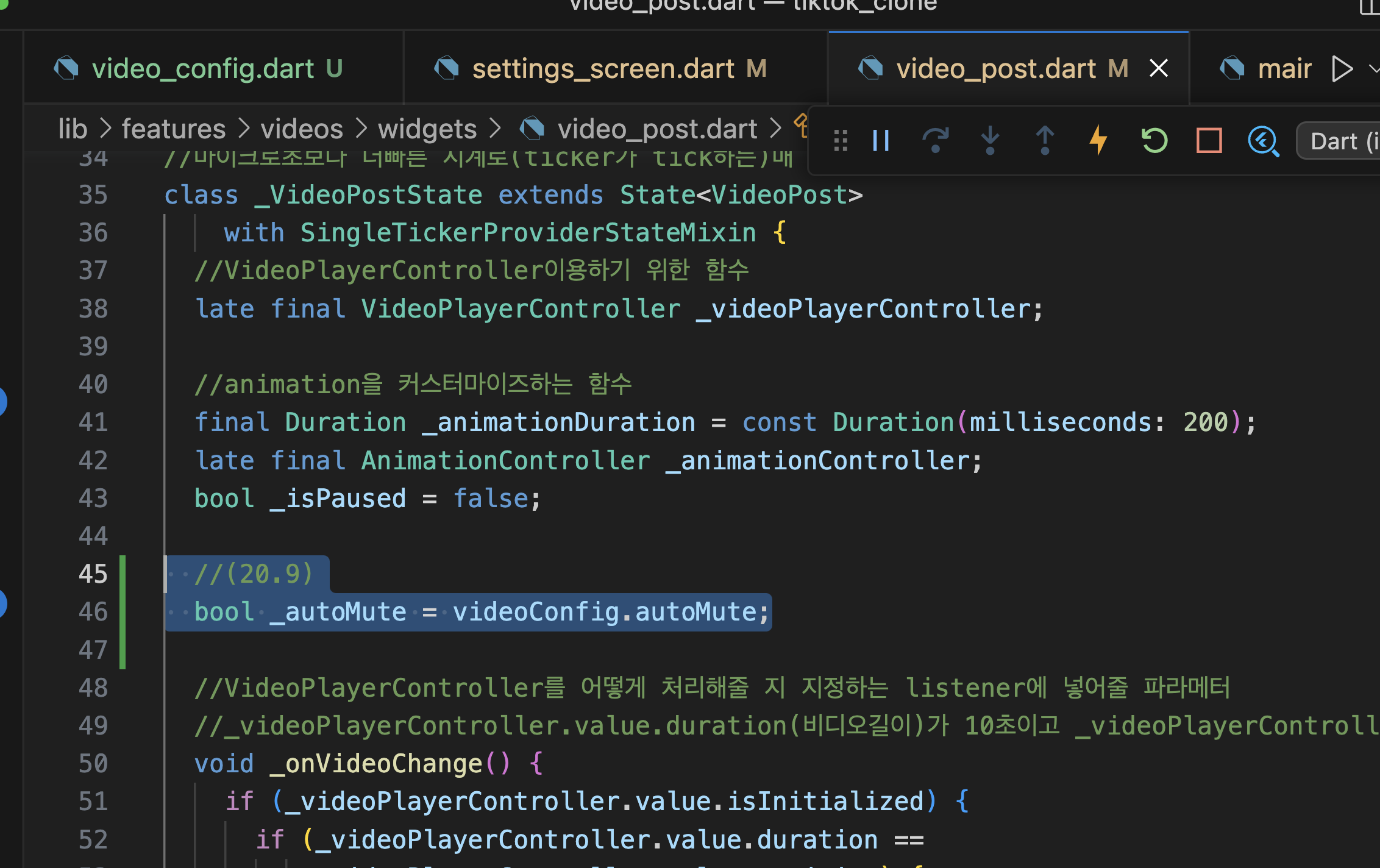
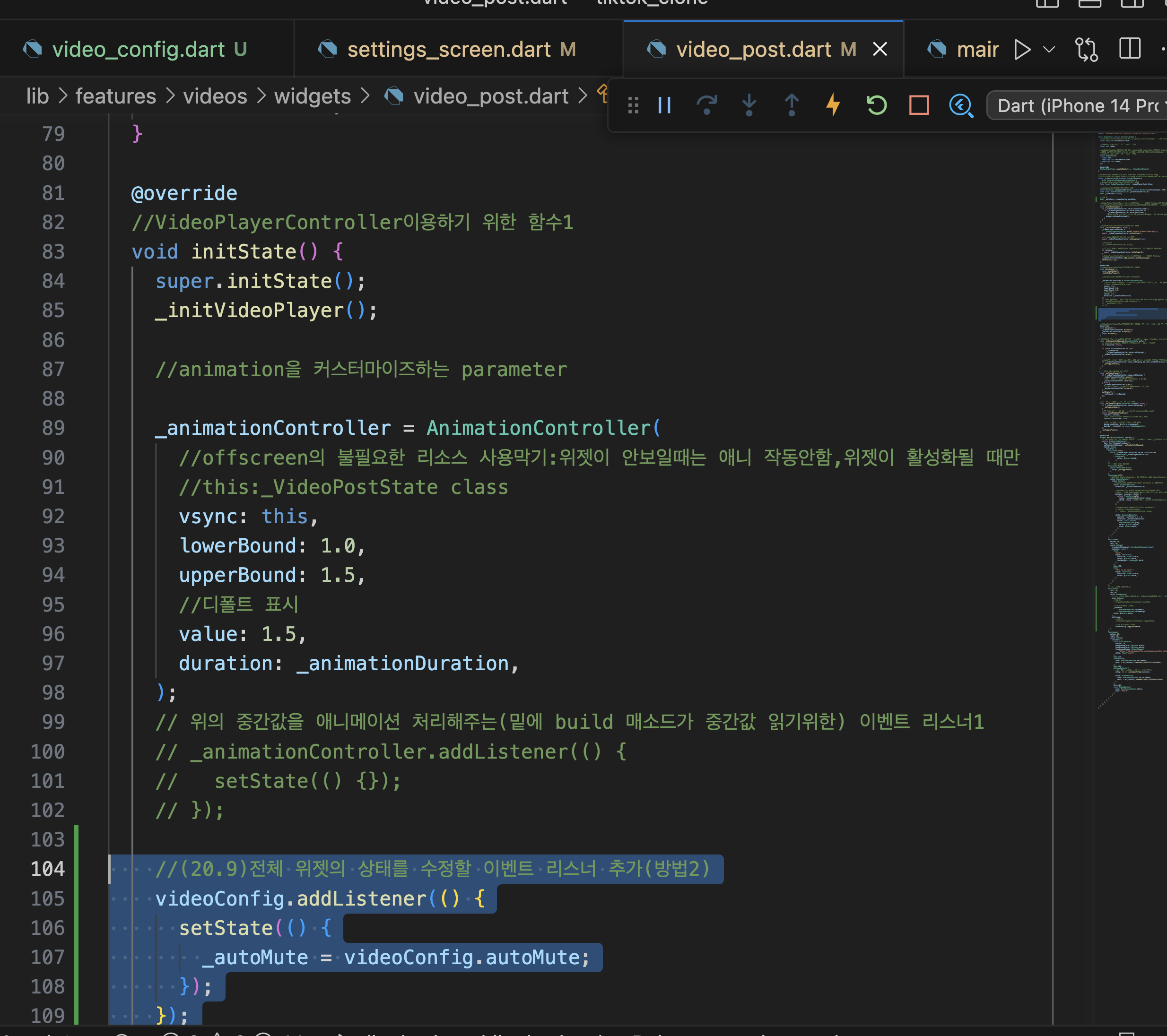
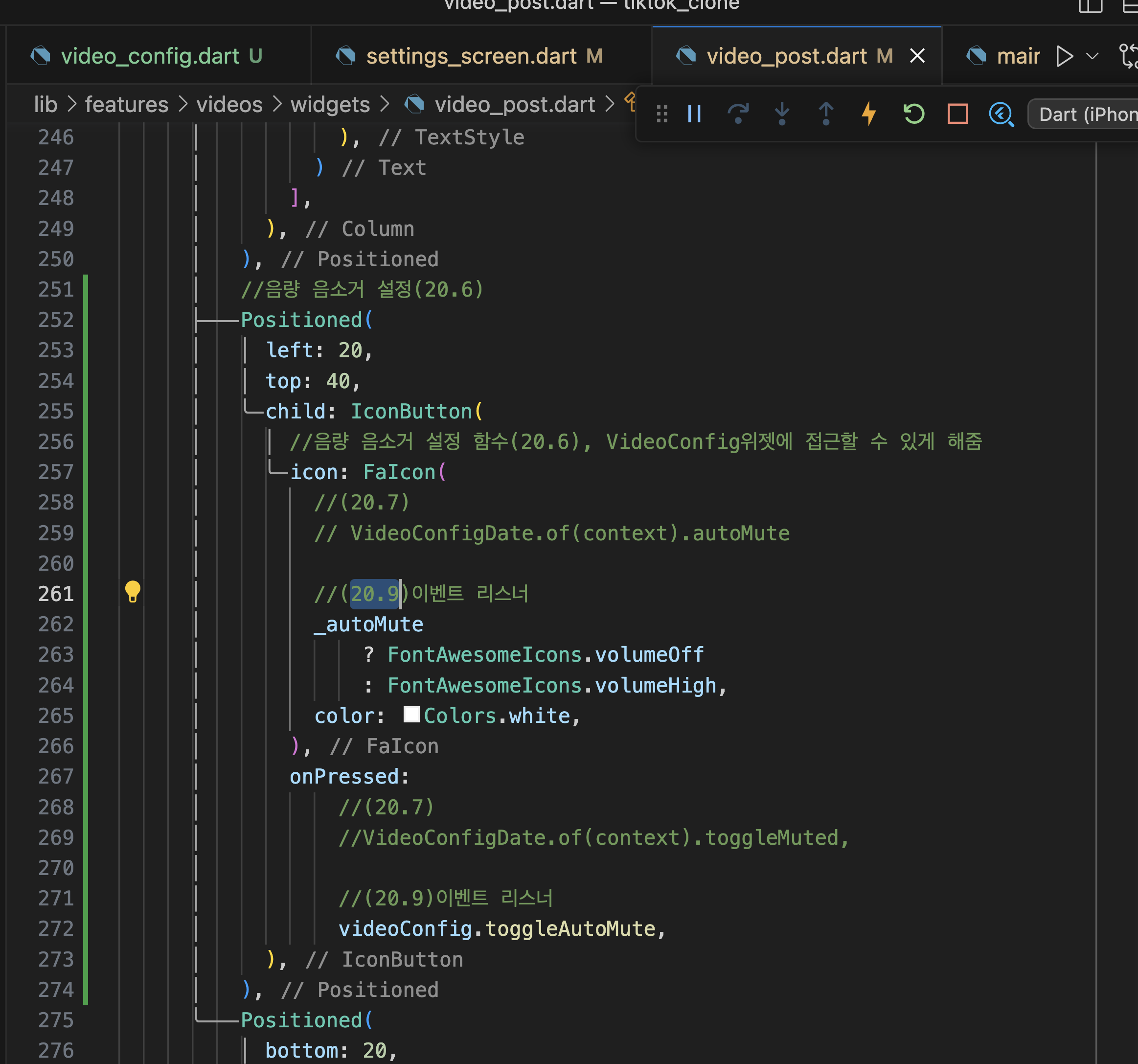
보다시피 상태관리가 잘되어 있음
20.10 ValueNotifier


        appBar: AppBar(
          title: const Text("Settings"),
        ),
        body: ListView(
          children: [

          --------------------
//(20.10) 방법 1
            // AnimatedBuilder(
            //   animation: videoConfig,
            //   builder: (context, child) => SwitchListTile.adaptive(
            //     value: videoConfig.value,
            //     onChanged: (value) {
            //       //값(value)을 직접 변경하고 있음
            //       videoConfig.value = !videoConfig.value;
            //     },
            //     title: const Text("Mute video"),
            //     subtitle: const Text("Videos will be muted by default."),
            //   ),
            // ),
            //(20.10) 방법 2
            ValueListenableBuilder(
              valueListenable: videoConfig,
              builder: (context, value, child) => SwitchListTile.adaptive(
                value: value,
                onChanged: (value) {
                  //값(value)을 직접 변경하고 있음
                  videoConfig.value = !videoConfig.value;
                },
                title: const Text("Mute video"),
                subtitle: const Text("Videos will be muted by default."),
              ),
            ),
            Checkbox(
              value: _notifications,
                        --------------------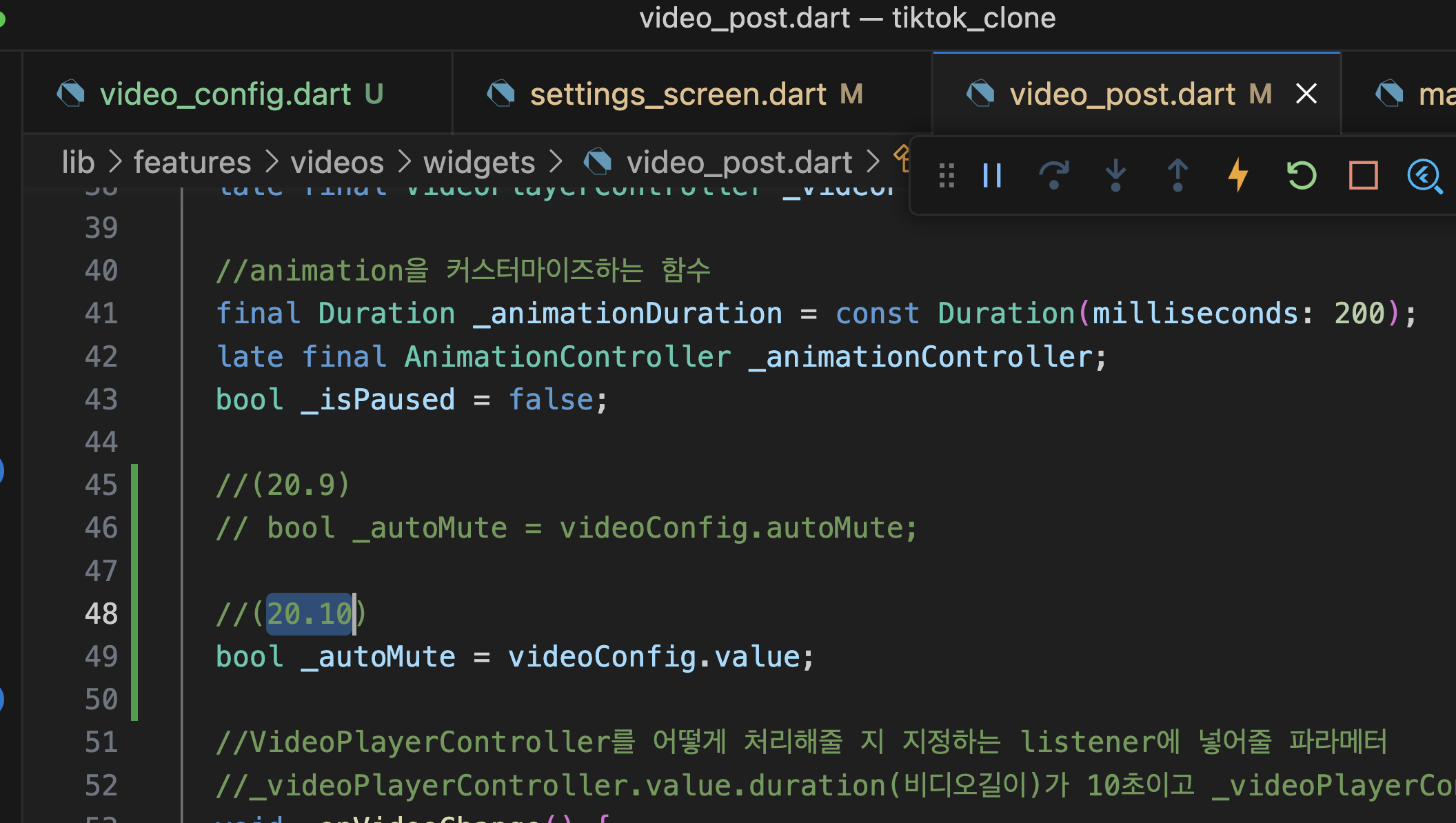
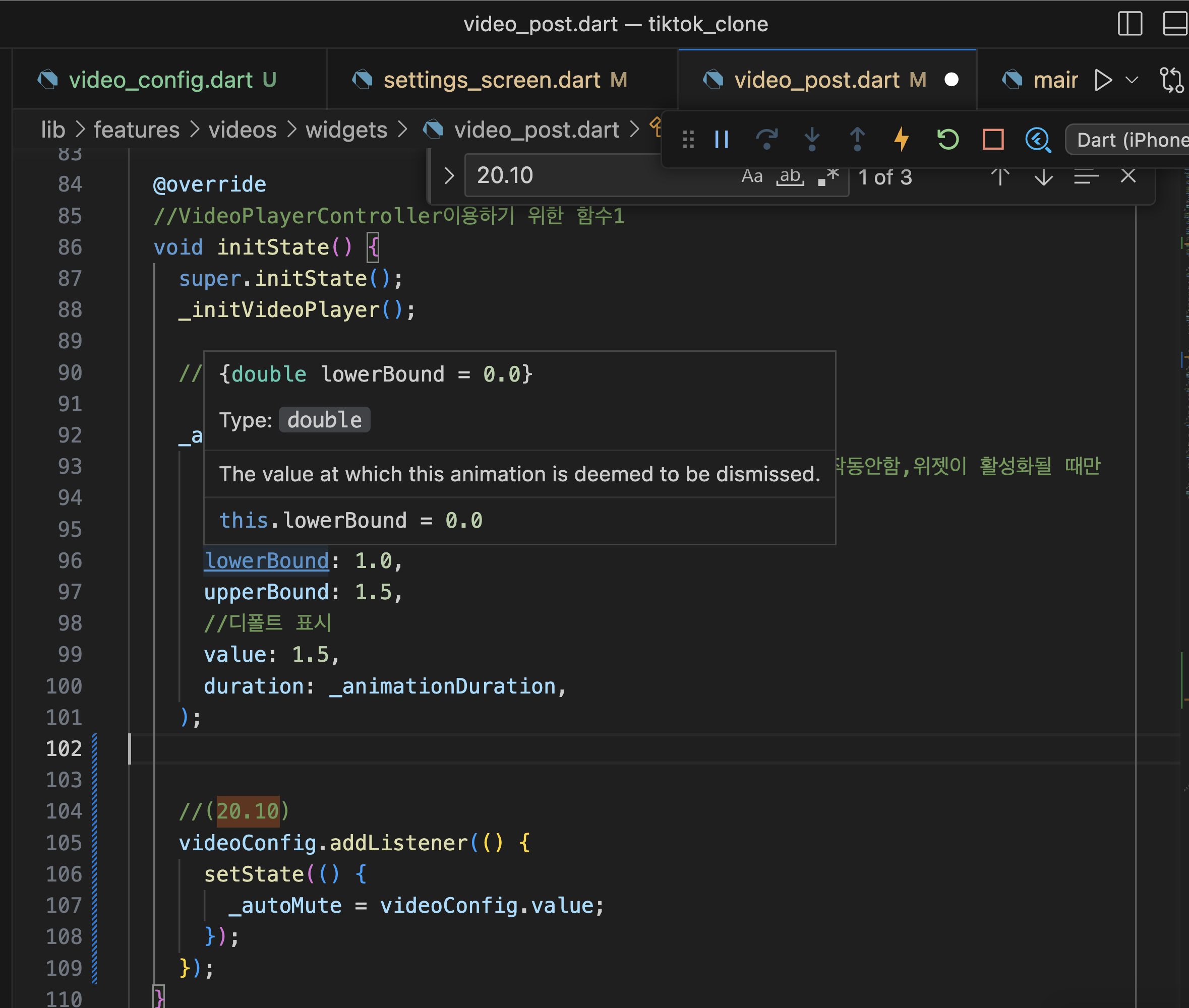
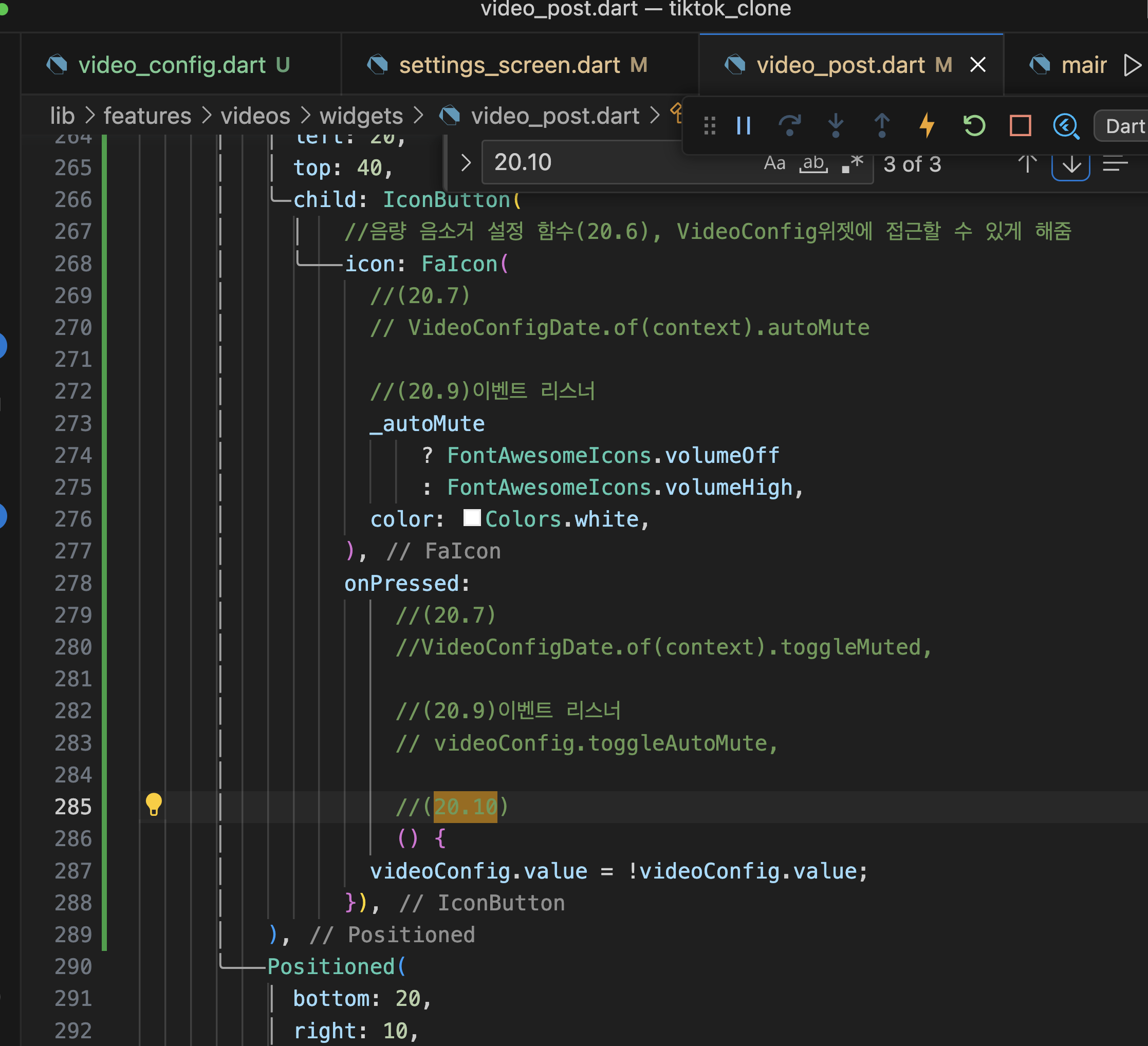
보다시피 상태관리가 잘되어 있음
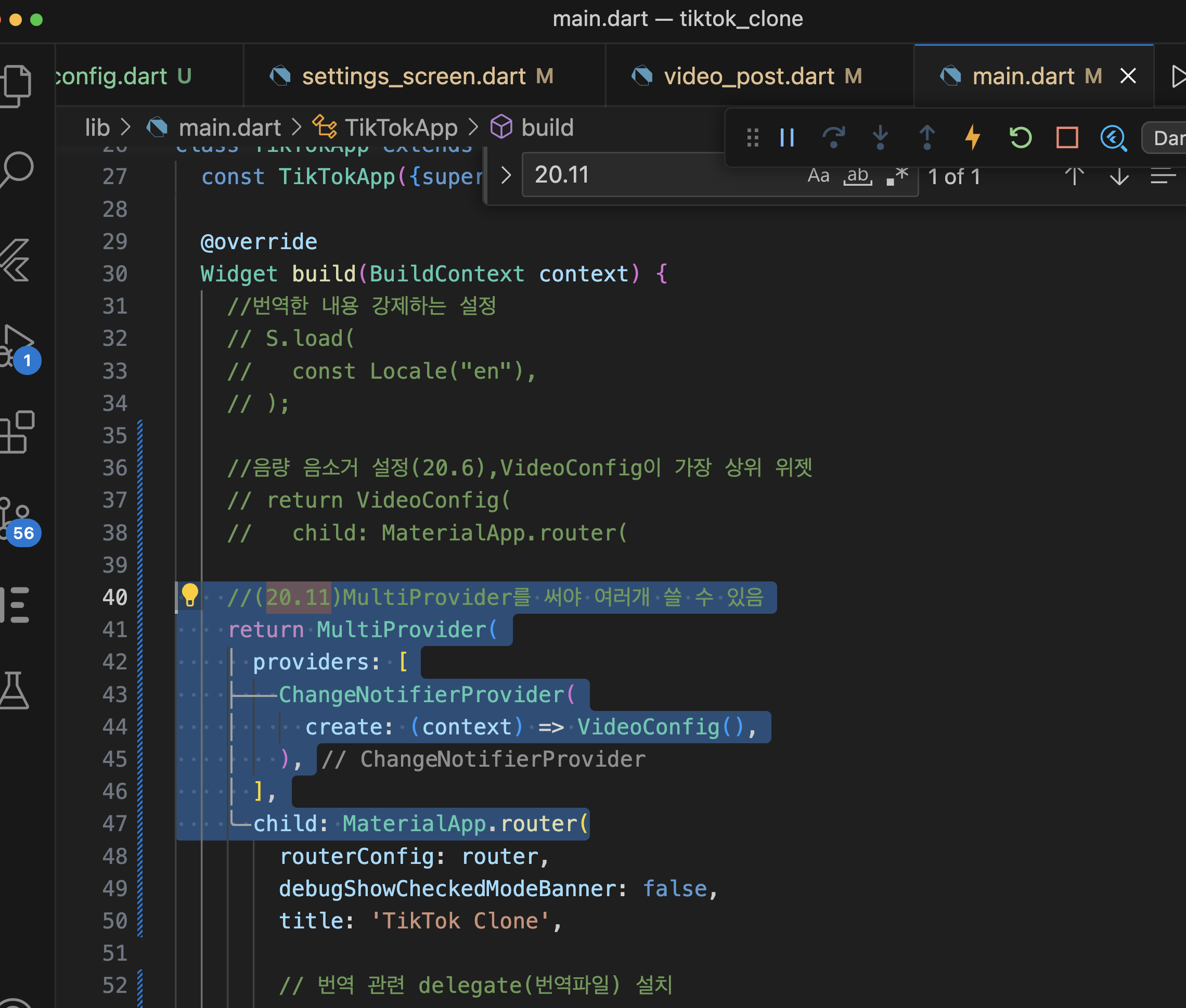
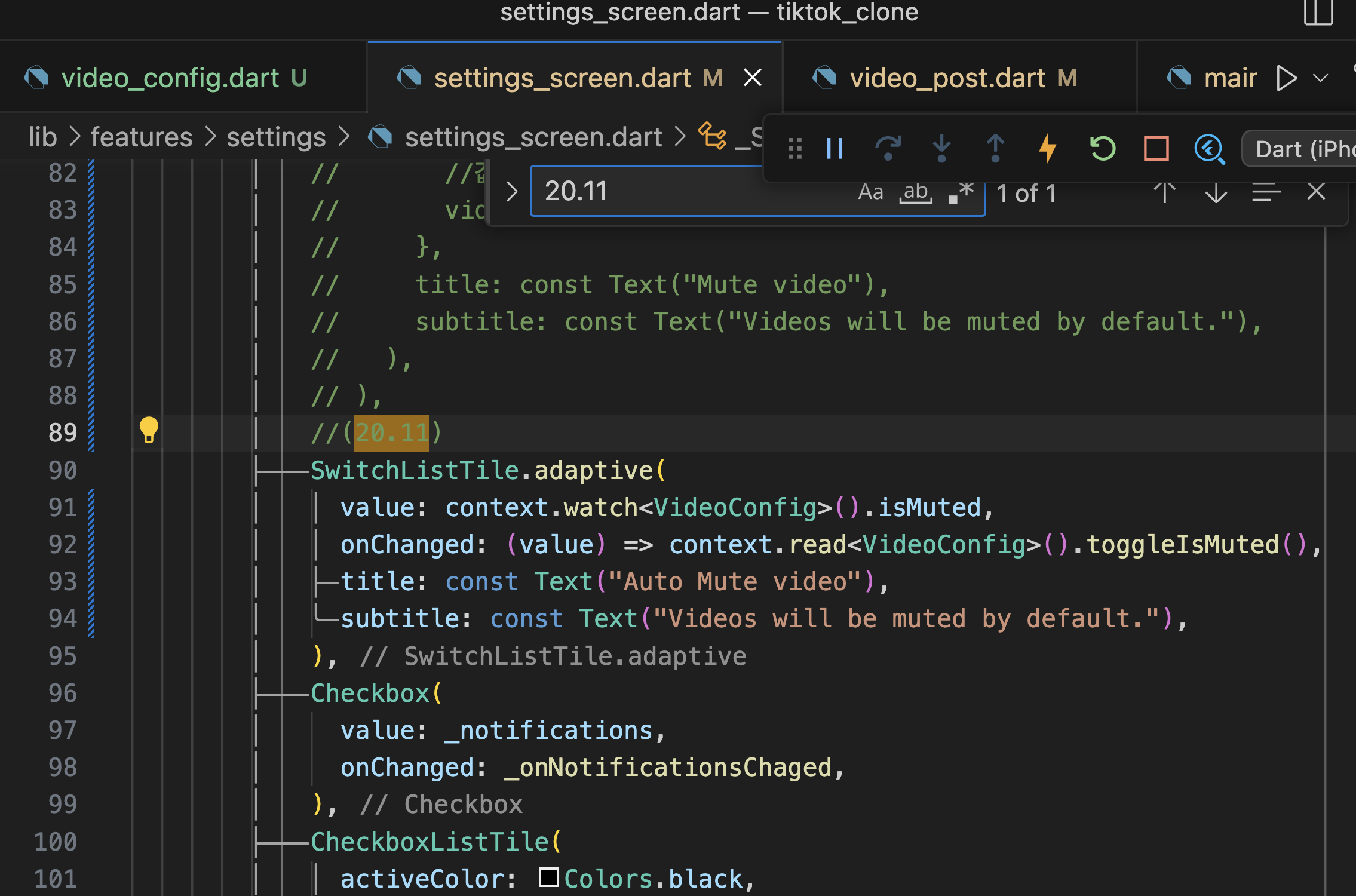
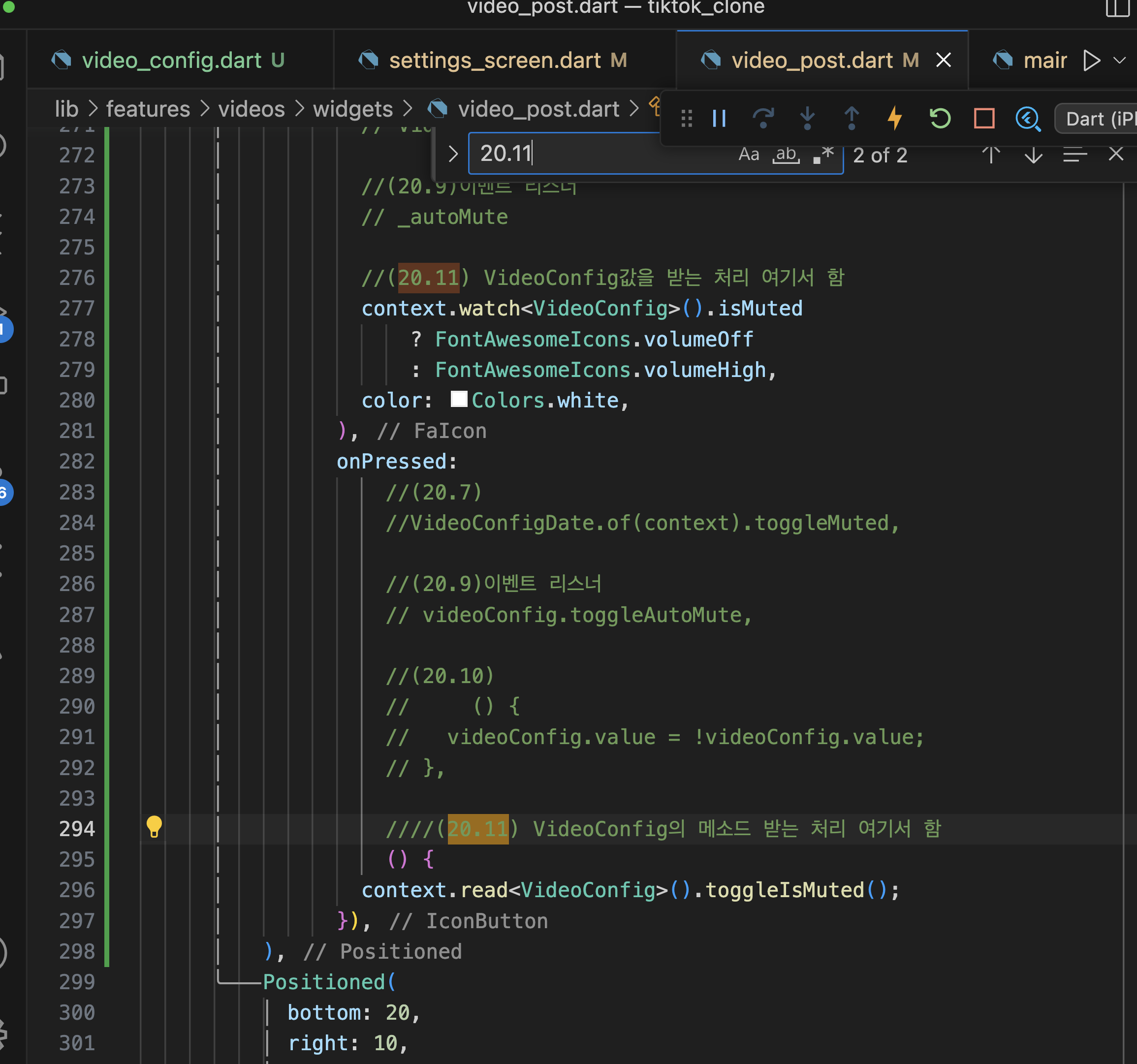
20.11 Provider
InhtertedWidget와 Statefulwideget 조합해놓은 듯한 쓰임이지만
사용자가 보고 있는 UI위젯에만 적용. 위젯에서 changeNotifer와 class로 기능을 따로 뺴고
provider를 써서 이렇게 접근할 수 있음