
스마트시대
TAB NAVIGATION 6.5 Custom NavigationBar 6.6 Stateful Navigation part One 6.7 Stateful Navigation part Two 6.8 Post Video Button 본문
Programing/Flutter
TAB NAVIGATION 6.5 Custom NavigationBar 6.6 Stateful Navigation part One 6.7 Stateful Navigation part Two 6.8 Post Video Button
스마트시대 2023. 5. 13. 01:49728x90
6.5 Custom NavigationBar
 @override
  Widget build(BuildContext context) {
    return Scaffold(
      bottomNavigationBar: BottomAppBar(
        color: Colors.black,
        child: Row(
          children: [
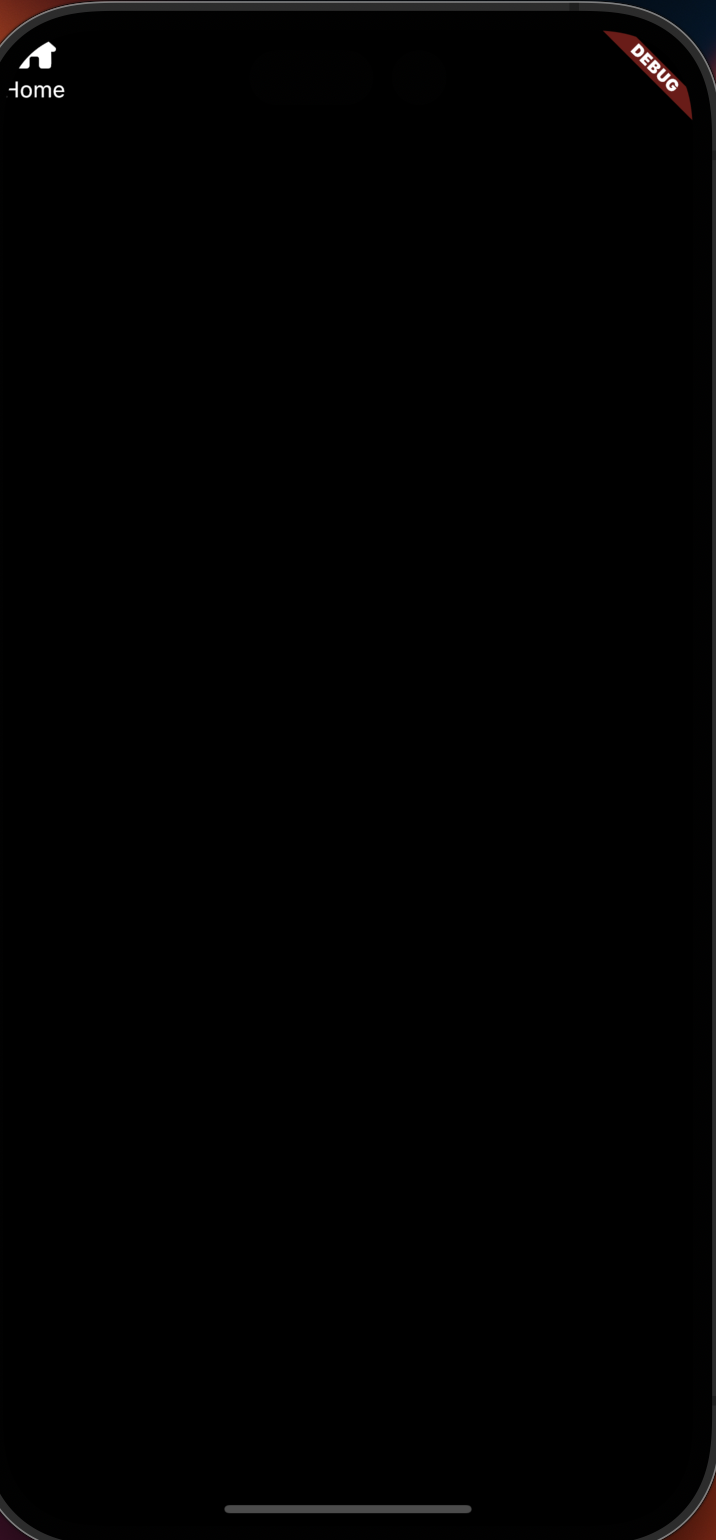
            //여기서 그냥 Column만 써버리면 디폴트로 세로 공간을 최대한 차지한다.
            Column(
              children: const [
                FaIcon(
                  FontAwesomeIcons.house,
                  color: Colors.white,
                ),
                Gaps.v5,
                Text(
                  "Home",
                  style: TextStyle(
                    color: Colors.white,
                  ),
                ),
              ],
            )
          ],
        ),
      ),
    );
  }
}
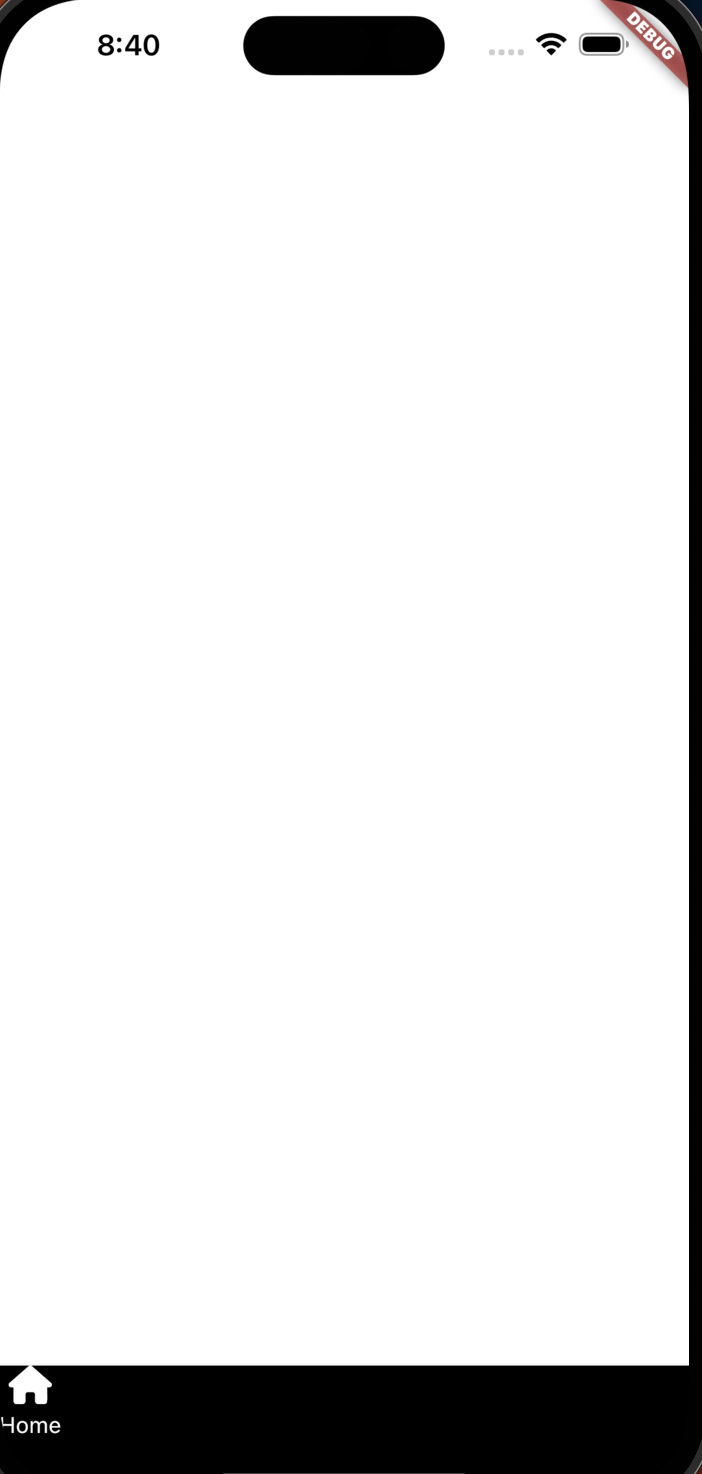
여기서 그냥 Column만 써버리면 디폴트로 세로 공간을 최대한 차지한다.
        color: Colors.black,

        ---------------------
        child: Padding(
          padding: const EdgeInsets.all(
            Sizes.size12,
          ),
          child: Row(
            // 각 위젯 적당히 간격띄우기
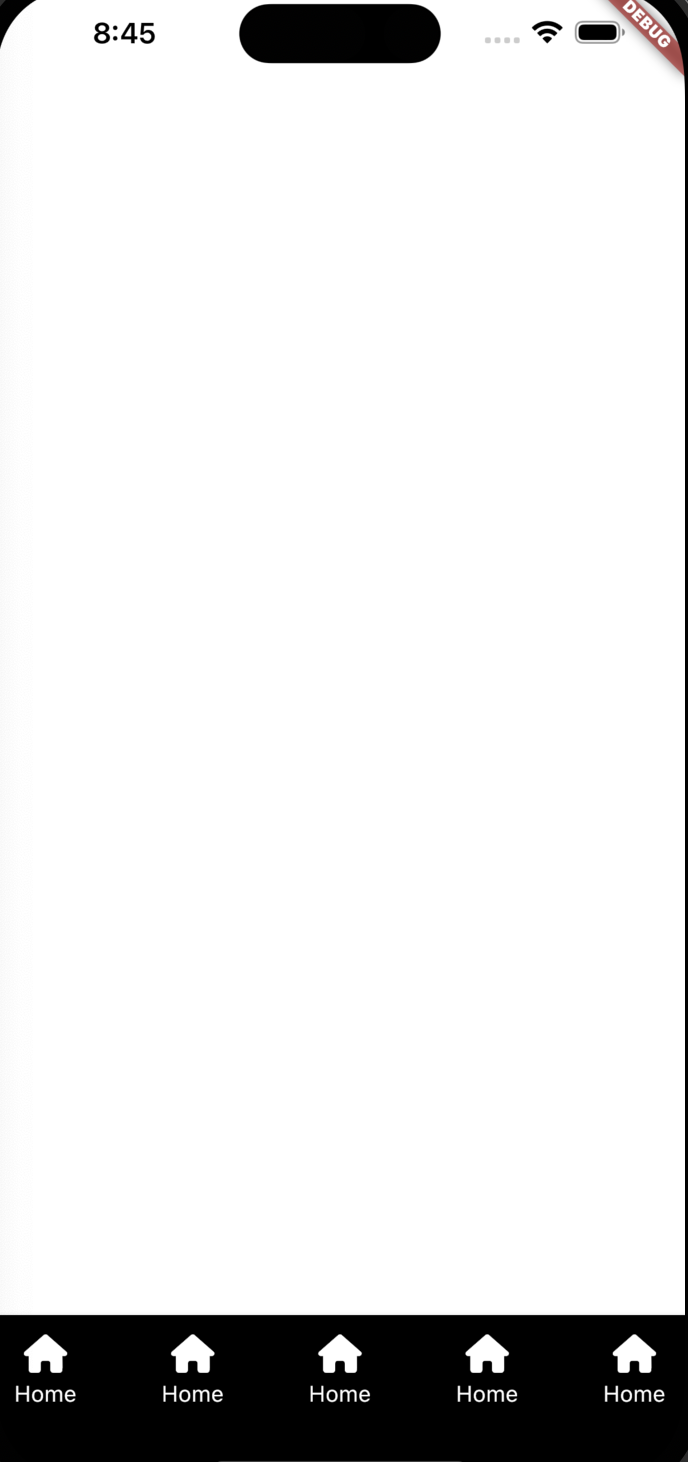
            mainAxisAlignment: MainAxisAlignment.spaceBetween,
            children: [
              //여기서 그냥 Column만 써버리면 디폴트로 세로 공간을 최대한 차지한다.
              Column(
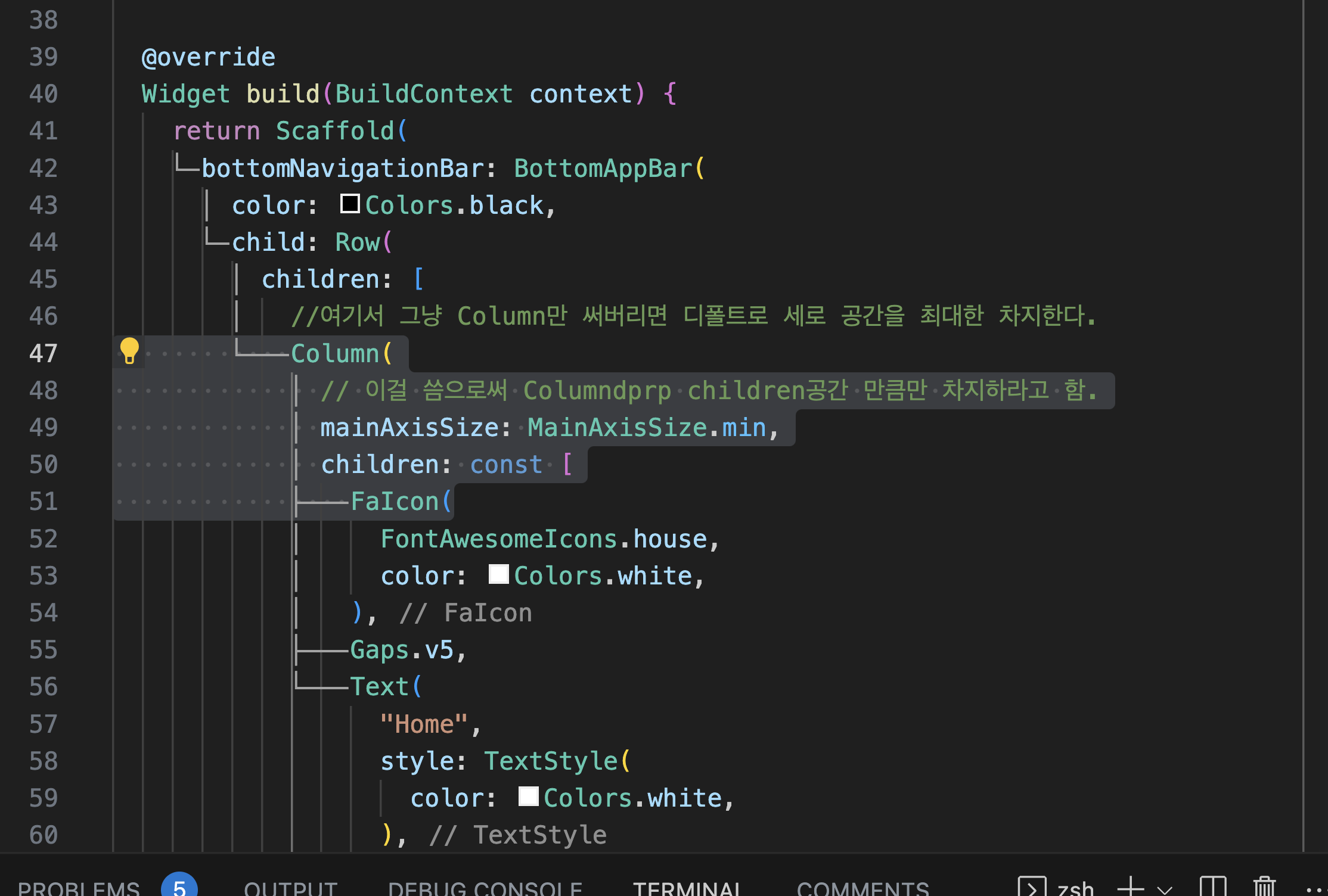
                // 이걸 씀으로써 Columndprp children공간 만큼만 차지하라고 함.
                mainAxisSize: MainAxisSize.min,
                children: const [
                  FaIcon(
                    FontAwesomeIcons.house,
                    color: Colors.white,
                  ),
                  Gaps.v5,
                  Text(
                    "Home",
                    style: TextStyle(
                      color: Colors.white,
                    ),
                  ),
                ],
              ),
              Column(
                mainAxisSize: MainAxisSize.min,
                children: const [
                  FaIcon(
                    FontAwesomeIcons.house,
                    color: Colors.white,
                  ),
                  Gaps.v5,
                  Text(
                    "Home",
                    style: TextStyle(
                      color: Colors.white,
                    ),
                  ),
                ],
              ),
              Column(
                mainAxisSize: MainAxisSize.min,
                children: const [
                  FaIcon(
                    FontAwesomeIcons.house,
                    color: Colors.white,
                  ),
                  Gaps.v5,
                  Text(
                    "Home",
                    style: TextStyle(
                      color: Colors.white,
                    ),
                  ),
                ],
              ),
              Column(
                mainAxisSize: MainAxisSize.min,
                children: const [
                  FaIcon(
                    FontAwesomeIcons.house,
                    color: Colors.white,
                  ),
                  Gaps.v5,
                  Text(
                    "Home",
                    style: TextStyle(
                      color: Colors.white,
                    ),
                  ),
                ],
              ),
              Column(
                mainAxisSize: MainAxisSize.min,
                children: const [
                  FaIcon(
                    FontAwesomeIcons.house,
                    color: Colors.white,
                  ),
                  Gaps.v5,
                  Text(
                    "Home",
                    style: TextStyle(
                      color: Colors.white,
                    ),
                  ),
                ],
              ),
            ],
          ),
        ),
      ),
    );
  }
}

여기에 템플릿 만들자
import 'package:flutter/material.dart';
import 'package:font_awesome_flutter/font_awesome_flutter.dart';

import '../../../constants/gaps.dart';

class NavTab extends StatelessWidget {
  const NavTab({
    super.key,
    required this.text,
    required this.isSelected,
    required this.icon,
  });

  final String text;
  final bool isSelected;
  final IconData icon;

  @override
  Widget build(BuildContext context) {
    return AnimatedOpacity(
      opacity: isSelected ? 1 : 0.6,
      duration: const Duration(
        milliseconds: 300,
      ),
      child: Column(
        // 이걸 씀으로써 Columndprp children공간 만큼만 차지하라고 함.
        mainAxisSize: MainAxisSize.min,
        children: [
          FaIcon(
            icon,
            color: Colors.white,
          ),
          Gaps.v5,
          Text(
            text,
            style: const TextStyle(
              color: Colors.white,
            ),
          ),
        ],
      ),
    );
  }
}
main_navigation_screen.dart
            mainAxisAlignment: MainAxisAlignment.spaceBetween,
            children: [
              //여기서 그냥 Column만 써버리면 디폴트로 세로 공간을 최대한 차지한다.


              ---------------------
              NavTab(
                text: "Home",
                isSelected: _selectedIndex == 0,
                icon: FontAwesomeIcons.house,
                onTap: () => _onTap(0)
              ),
              NavTab(
                text: "Discover",
                isSelected: _selectedIndex == 1,
                icon: FontAwesomeIcons.magnifyingGlass,
                onTap: () => _onTap(1)
              ),
              NavTab(
                text: "Index",
                isSelected: _selectedIndex == 3,
                icon: FontAwesomeIcons.message,
                onTap: () => _onTap(3)
              ),
              NavTab(
                text: "Profile",
                isSelected: _selectedIndex == 4,
                icon: FontAwesomeIcons.user,
                onTap: () => _onTap(4)
              ),
              ---------------
            ],
          ),
        ),
      ),
    );
  }
}
nav.tab.dart에 onTap 함수 정의
class NavTab extends StatelessWidget {
  const NavTab({
    super.key,
    required this.text,
    required this.isSelected,
    required this.icon,

    --------------
    required this.onTap,
        --------------
  });

  final String text;
  final bool isSelected;
  final IconData icon;
      --------------
  final Function onTap;
    --------------


  @override
  Widget build(BuildContext context) {
      --------------
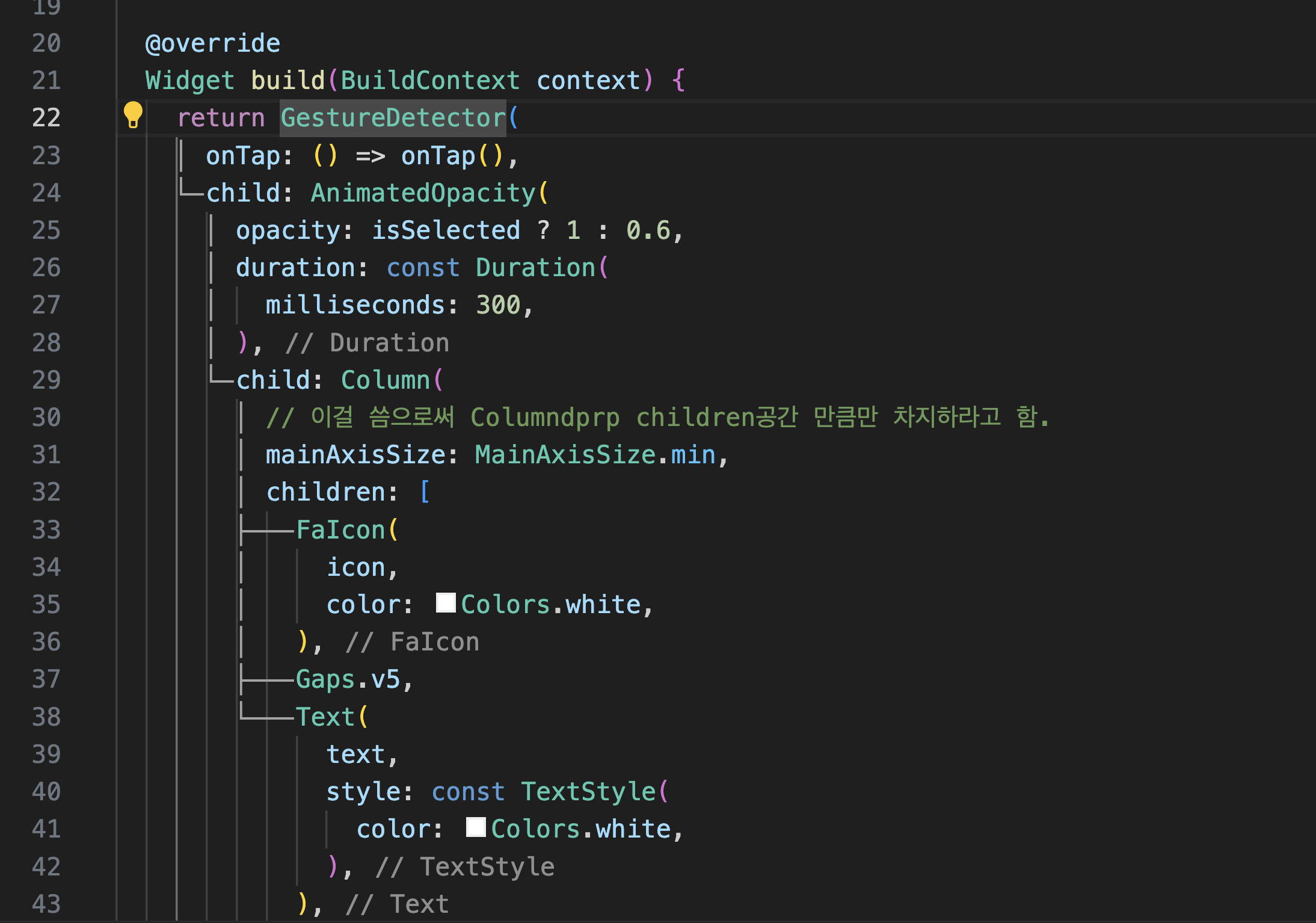
    return GestureDetector(
      onTap: () => onTap(),
          --------------

      child: AnimatedOpacity(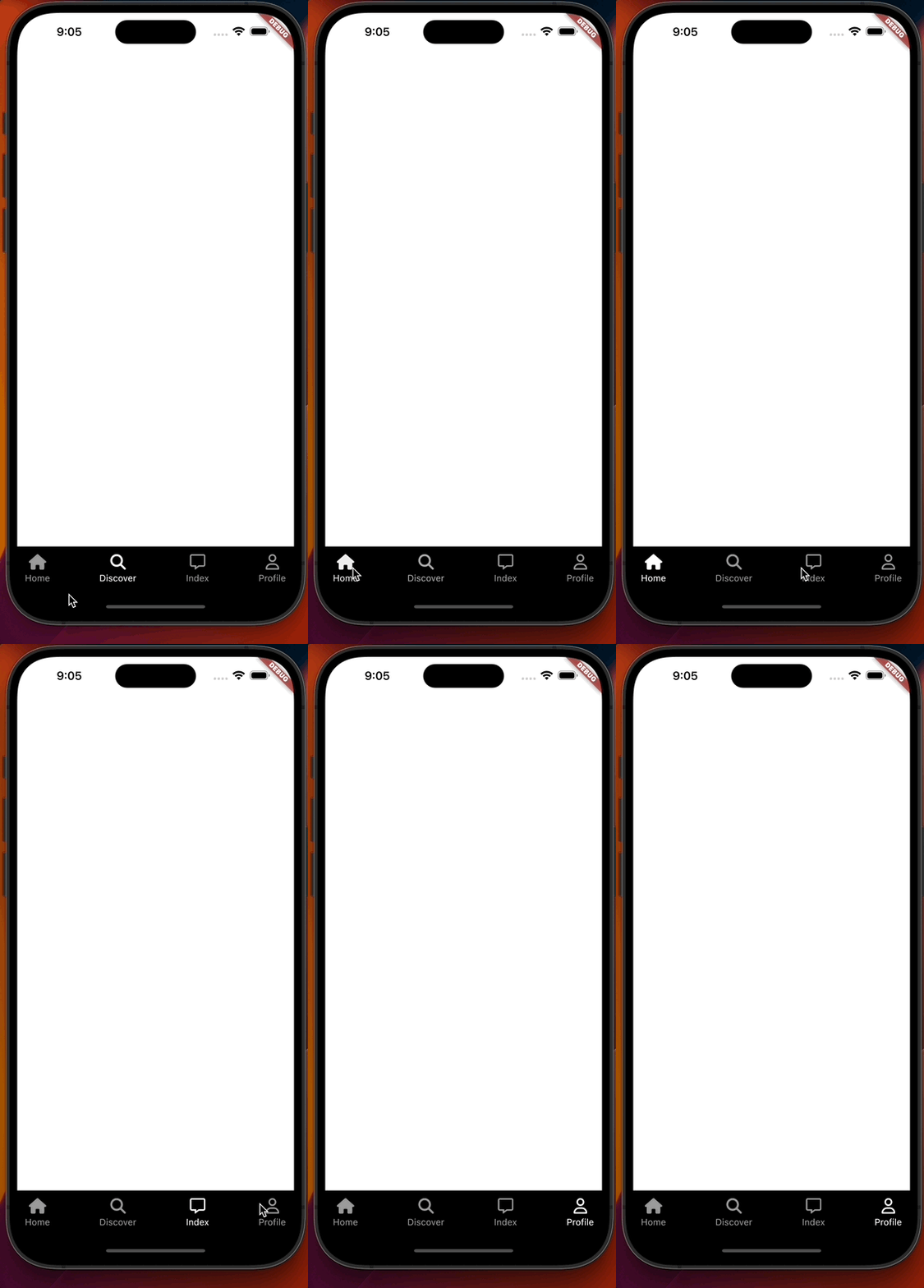
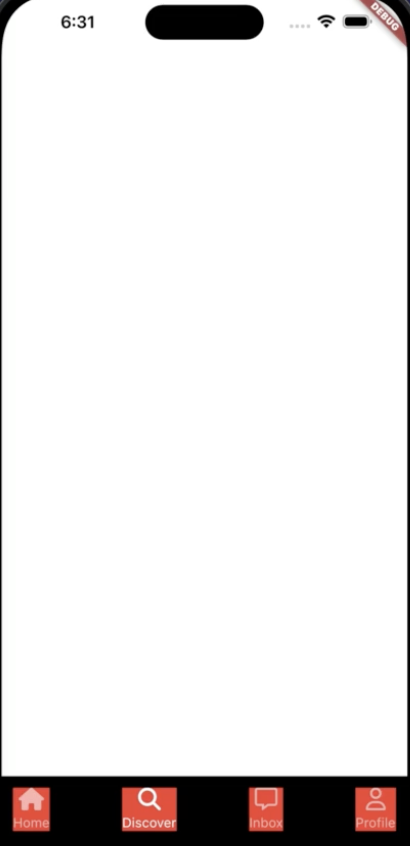
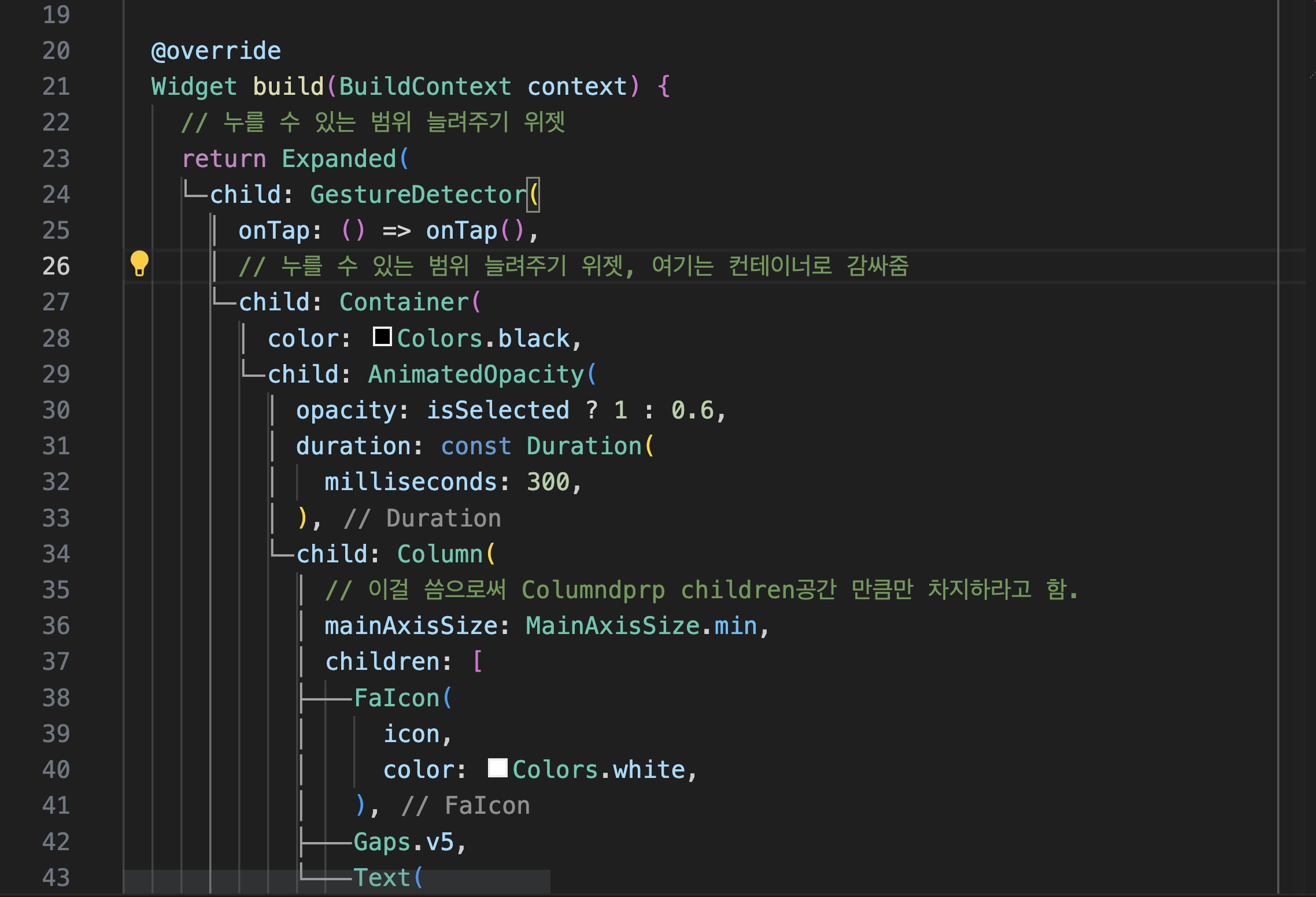
지금 이 코드에서는 여기까지만 눌러진다.

6.6 Stateful Navigation part One
nav_tab.dart
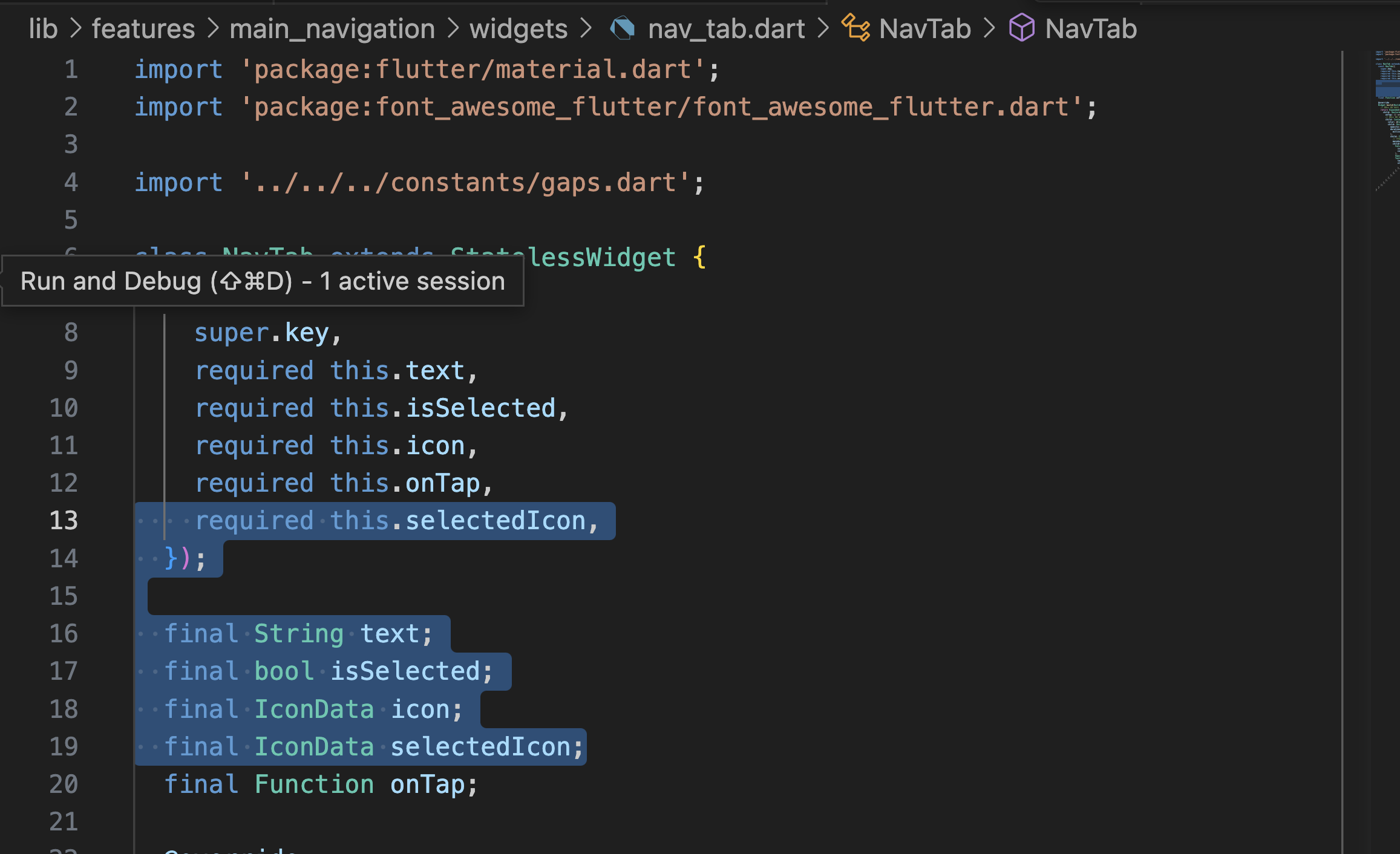
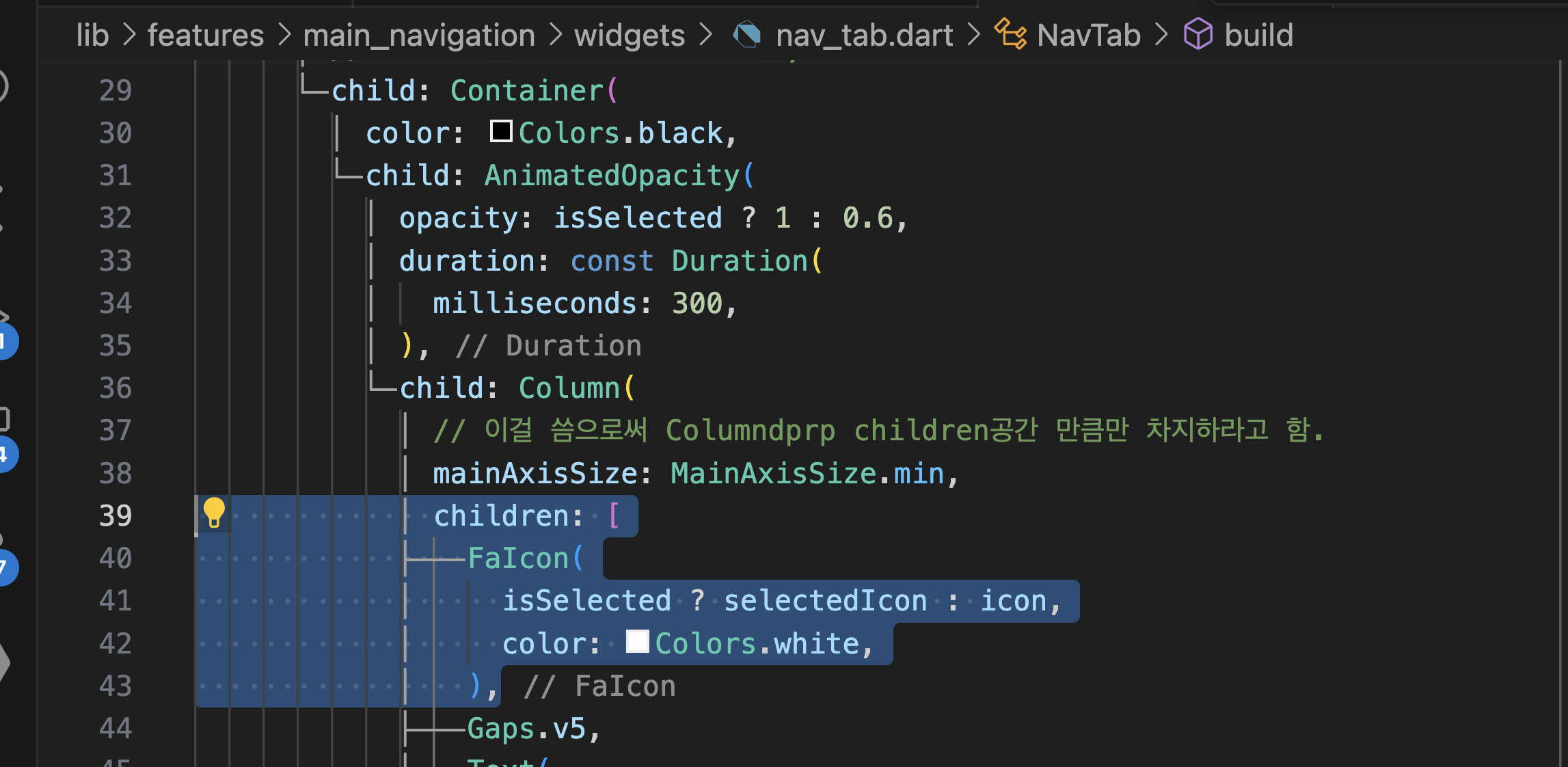
main_navigation_screen.dart
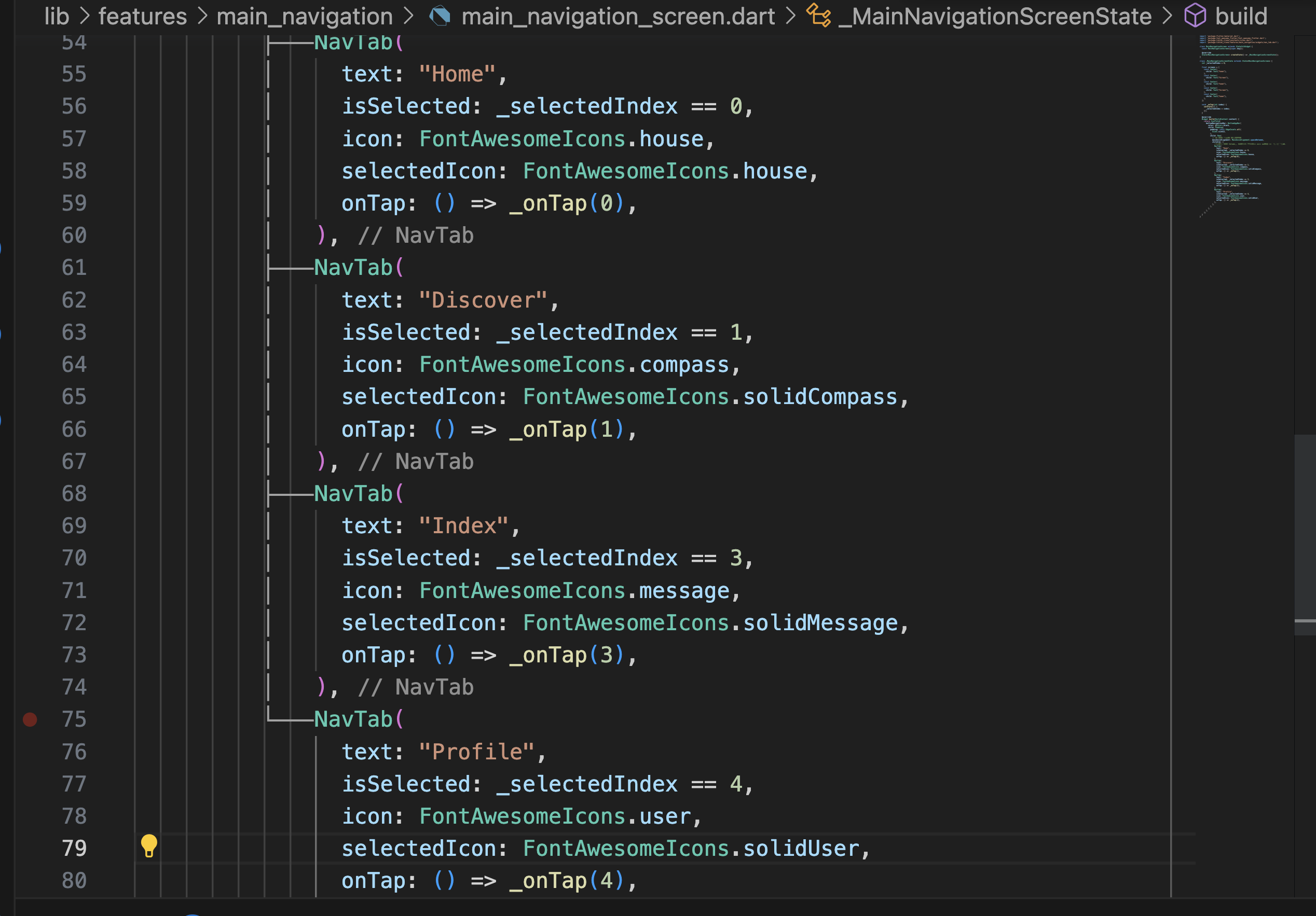
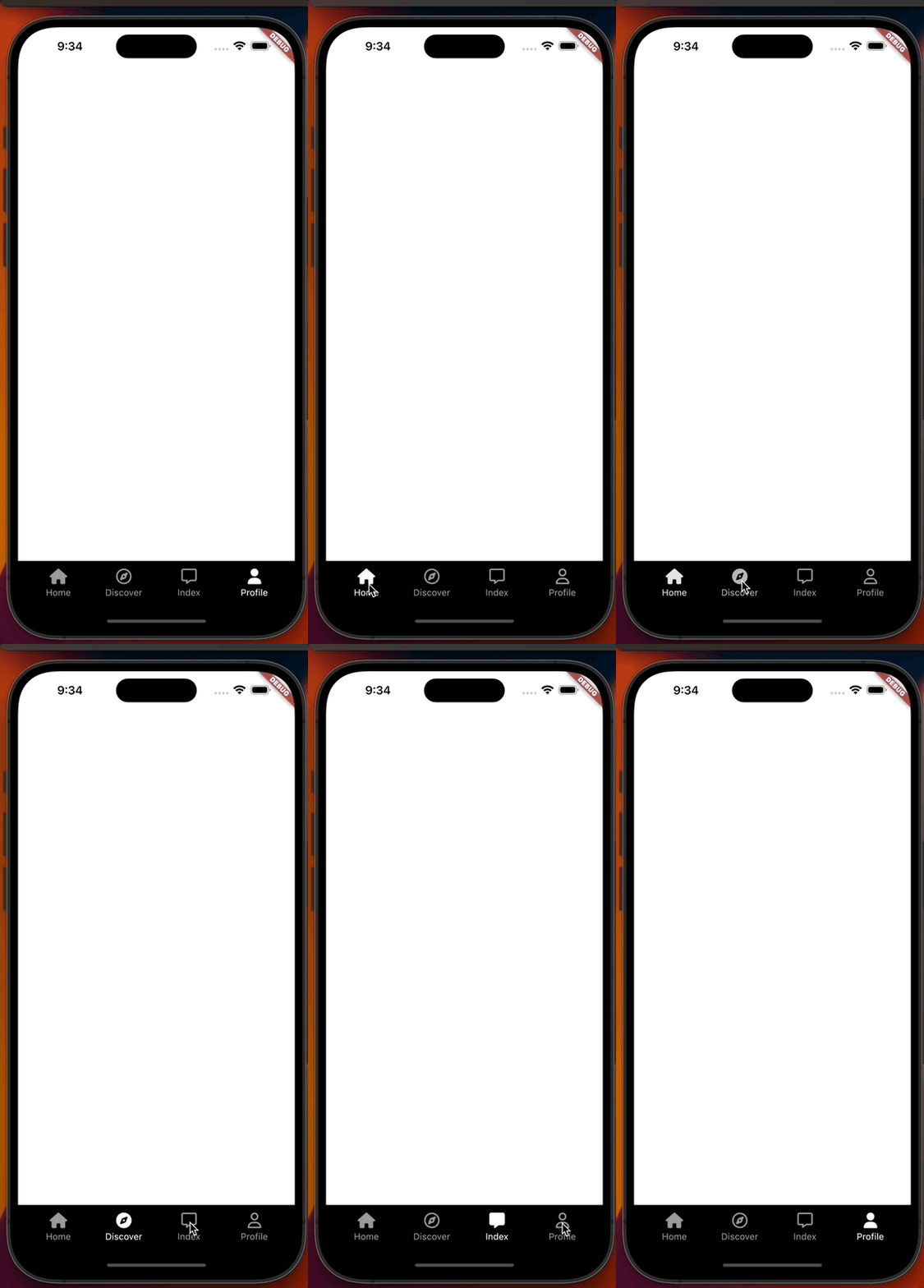
import 'package:flutter/material.dart';
import 'package:font_awesome_flutter/font_awesome_flutter.dart';
import 'package:tiktok_clone/constants/sizes.dart';
import 'package:tiktok_clone/features/main_navigation/widgets/nav_tab.dart';

class MainNavigationScreen extends StatefulWidget {
  const MainNavigationScreen({super.key});

  @override
  State<MainNavigationScreen> createState() => _MainNavigationScreenState();
}

class _MainNavigationScreenState extends State<MainNavigationScreen> {
  int _selectedIndex = 0;

  final screens = [
    const Center(
      child: Text(
        "home",
        style: TextStyle(
          fontSize: 49,
        ),
      ),
    ),
    const Center(
      child: Text(
        "Discover",
        style: TextStyle(
          fontSize: 49,
        ),
      ),
    ),
    Container(),
    const Center(
      child: Text(
        "Inbox",
        style: TextStyle(
          fontSize: 49,
        ),
      ),
    ),
    const Center(
      child: Text(
        "Profile",
        style: TextStyle(
          fontSize: 49,
        ),
      ),
    ),
  ];

  void _onTap(int index) {
    setState(() {
      _selectedIndex = index;
    });
  }

  @override
  Widget build(BuildContext context) {
    return Scaffold(
      body: screens.elementAt(_selectedIndex),
      bottomNavigationBar: BottomAppBar(
        color: Colors.black,
        child: Padding(
          padding: const EdgeInsets.all(
            Sizes.size12,
          ),
          child: Row(
            // 각 위젯 적당히 간격띄우기
            mainAxisAlignment: MainAxisAlignment.spaceBetween,
            children: [
              //여기서 그냥 Column만 써버리면 디폴트로 세로 공간을 최대한 차지한다.
              NavTab(
                text: "Home",
                isSelected: _selectedIndex == 0,
                icon: FontAwesomeIcons.house,
                selectedIcon: FontAwesomeIcons.house,
                onTap: () => _onTap(0),
              ),
              NavTab(
                text: "Discover",
                isSelected: _selectedIndex == 1,
                icon: FontAwesomeIcons.compass,
                selectedIcon: FontAwesomeIcons.solidCompass,
                onTap: () => _onTap(1),
              ),
              NavTab(
                text: "Inbox",
                isSelected: _selectedIndex == 3,
                icon: FontAwesomeIcons.message,
                selectedIcon: FontAwesomeIcons.solidMessage,
                onTap: () => _onTap(3),
              ),
              NavTab(
                text: "Profile",
                isSelected: _selectedIndex == 4,
                icon: FontAwesomeIcons.user,
                selectedIcon: FontAwesomeIcons.solidUser,
                onTap: () => _onTap(4),
              ),
            ],
          ),
        ),
      ),
    );
  }
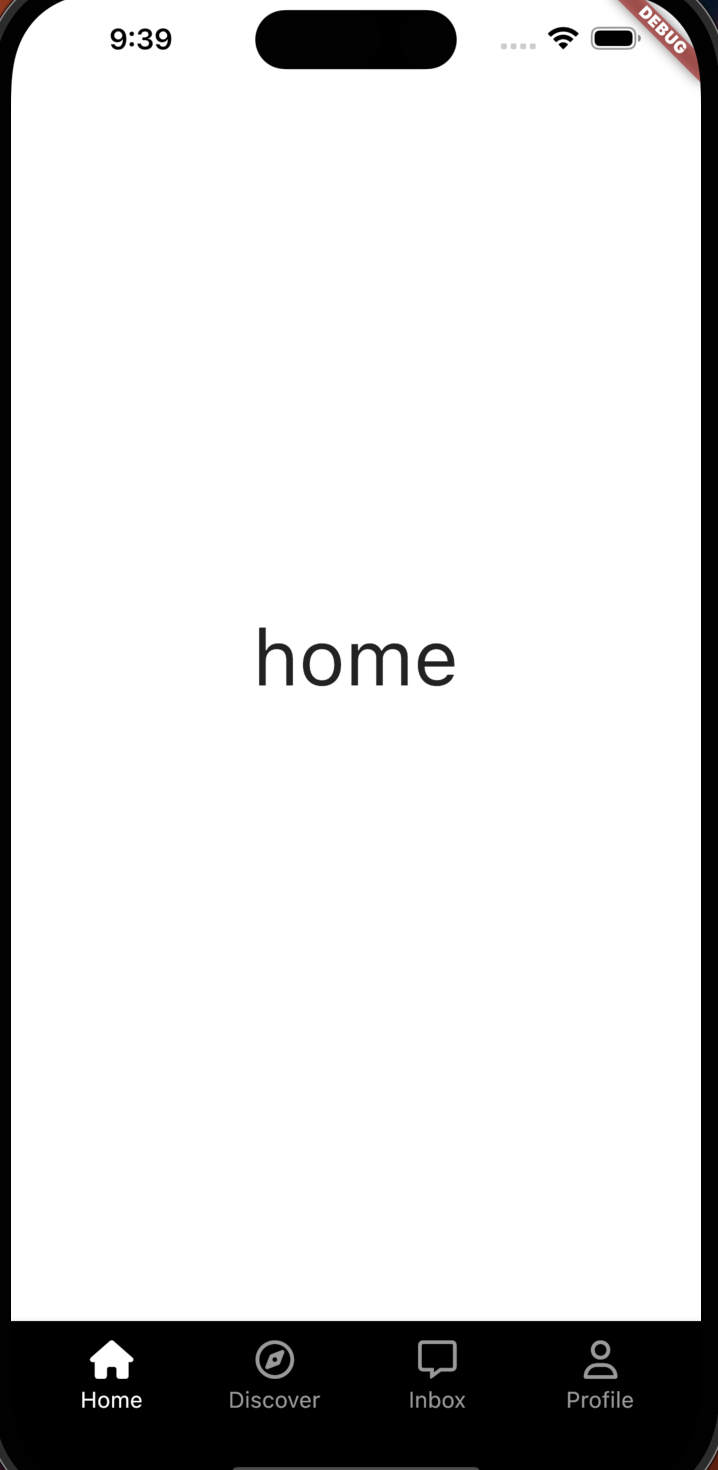
}
아래 코드는 flutter가 각 화면을 서로 다른 위젯인 것 처럼 렌더링하는 걸 보여주기 위한 샘플 코드임.

import 'package:flutter/material.dart';

class StfScreen extends StatefulWidget {
  const StfScreen({super.key});

  @override
  State<StfScreen> createState() => _StfScreenState();
}

class _StfScreenState extends State<StfScreen> {
  int _clicks = 0;

  void _increase() {
    setState(() {
      _clicks = _clicks + 1;
    });
  }

  @override
  Widget build(BuildContext context) {
    return Center(
      child: Column(
        mainAxisAlignment: MainAxisAlignment.center,
        children: [
          Text(
            "$_clicks",
            style: const TextStyle(
              fontSize: 48,
            ),
          ),
          TextButton(
            onPressed: _increase,
            child: const Text("+"),
          ),
        ],
      ),
    );
  }
}
main_navigation_screen.dart
class _MainNavigationScreenState extends State<MainNavigationScreen> {
  int _selectedIndex = 0;

-------------------
  final screens = [
    const StfScreen(),
    const StfScreen(),
    Container(),
    const StfScreen(),
    const StfScreen(),
  ];
  -------------------

  void _onTap(int index) {
    setState(() {
      _selectedIndex = index;
    });
  }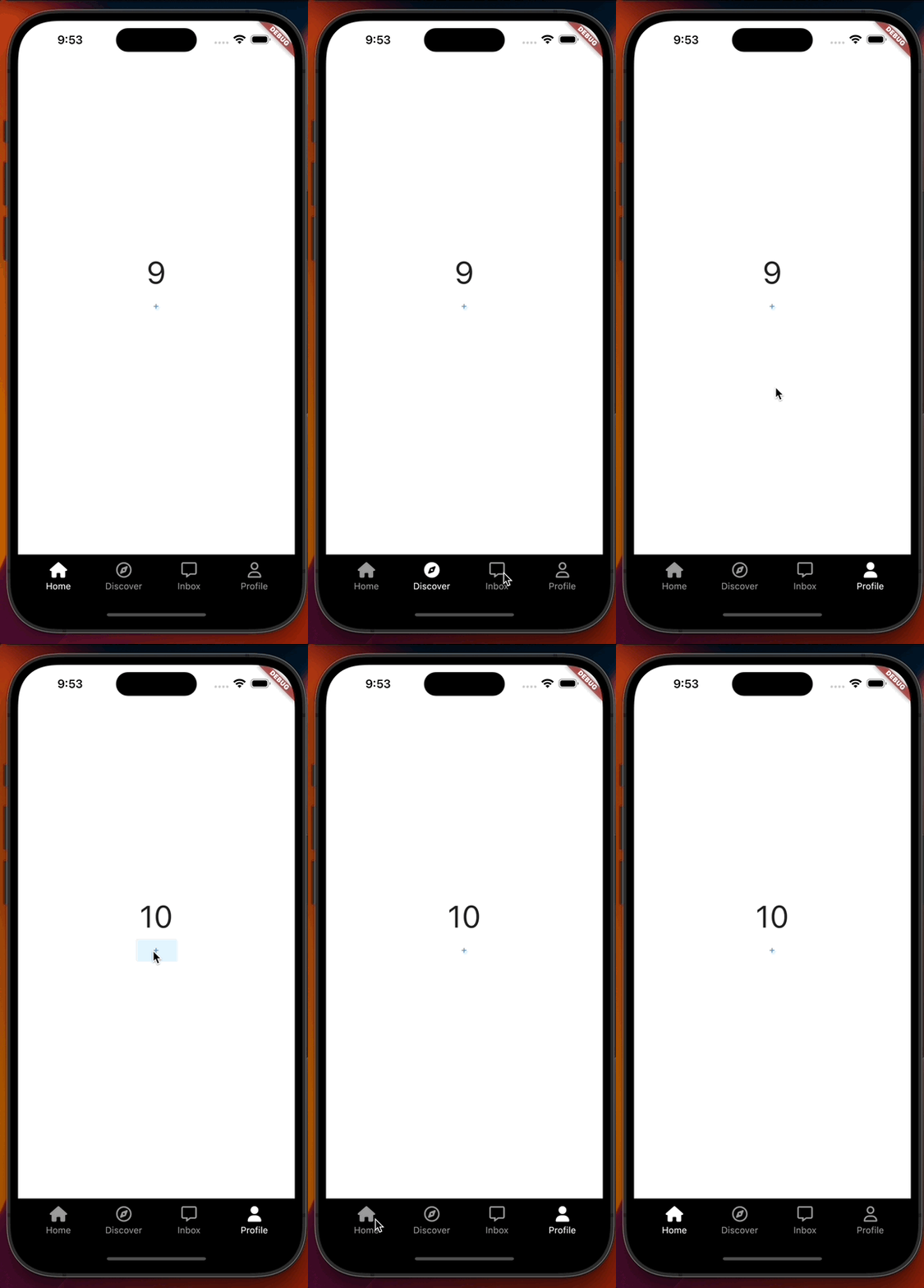
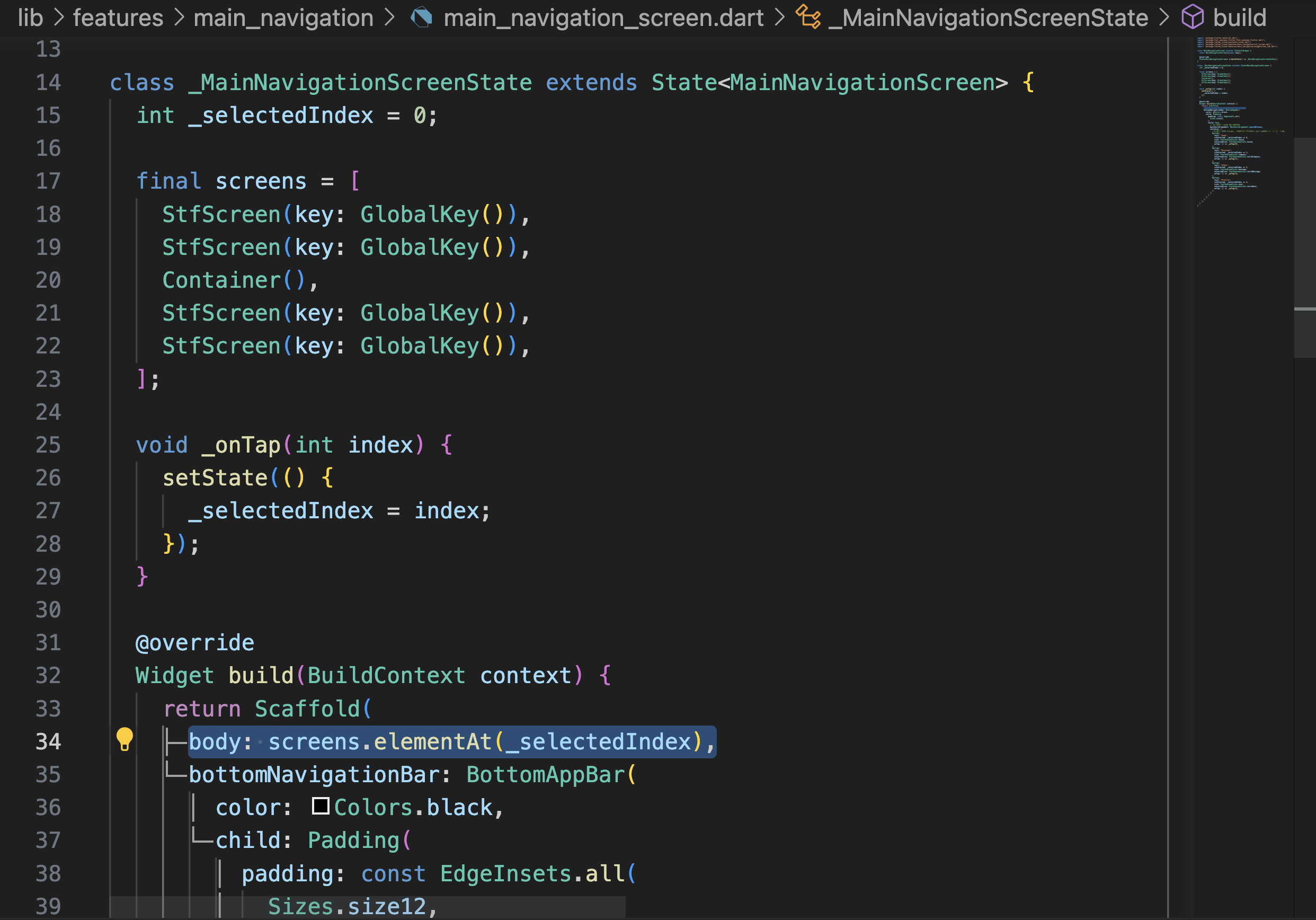
여기선 아직 다른 텝인지 플러터가 혼동하고 있다. StfScreen()이 같은 종류라서.
그래서 쓰이는 게
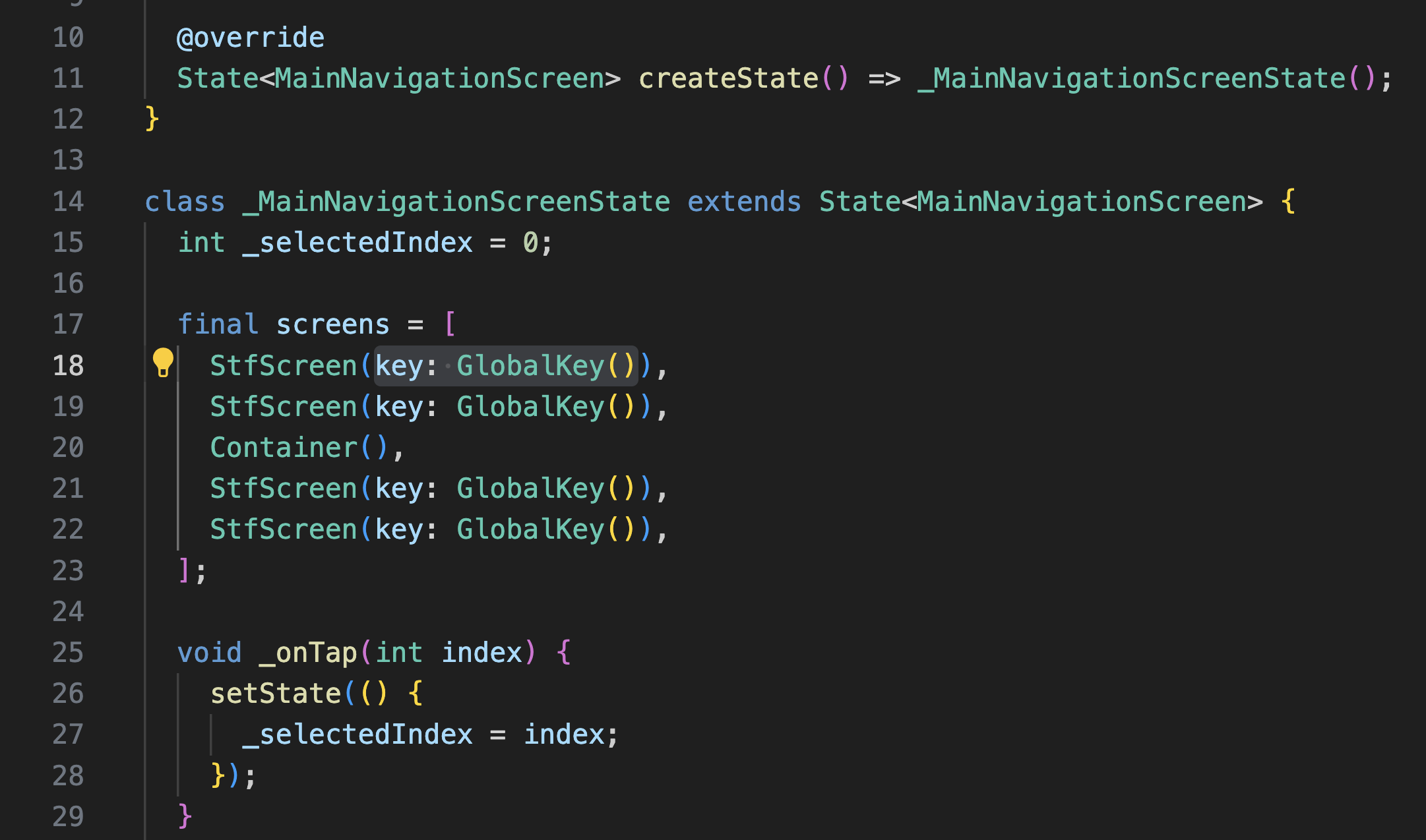
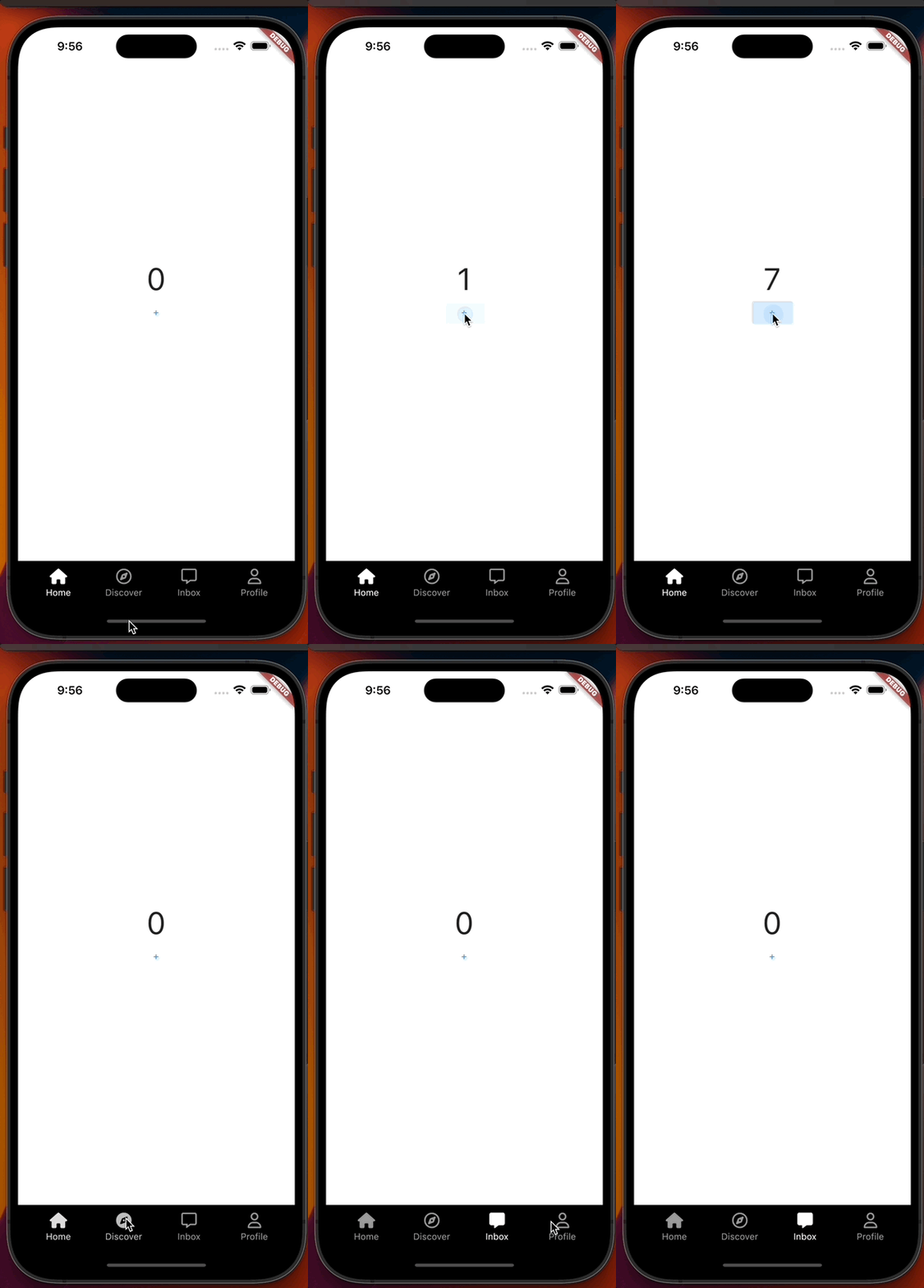
하지만 이 코드도 좋을 수도 있고 안 좋을수도 있는게 현재 flutter는 이전 화면이 뭐였든지 다 지워버리고 항상 선택된 화면만 보여주고 있음

6.7 Stateful Navigation part Two
class _MainNavigationScreenState extends State<MainNavigationScreen> {
  int _selectedIndex = 0;

-----------------
// //offStage쓸 땐 이거 필요 없음
//   final screens = [
//     StfScreen(key: GlobalKey()),
//     StfScreen(key: GlobalKey()),
//     Container(),
//     StfScreen(key: GlobalKey()),
//     StfScreen(key: GlobalKey()),
//   ];
-----------------

  void _onTap(int index) {
    setState(() {
      _selectedIndex = index;
    });
  }

  @override
  Widget build(BuildContext context) {
    return Scaffold(
      // // 선택된 탭의 페이지만 보여주기: 항상 새로운 페이지로써 표시됨
      // body: screens.elementAt(_selectedIndex),
      // offStage: 해당 위젯을 안 보이게 하면서 계속 존재하게 해주는 위젯

      --------------------
      body: Stack(
        children: [
          Offstage(
            offstage: _selectedIndex != 0,
            child: const StfScreen(),
          ),
          Offstage(
            offstage: _selectedIndex != 1,
            child: const StfScreen(),
          ),
          Offstage(
            offstage: _selectedIndex != 3,
            child: const StfScreen(),
          ),
          Offstage(
            offstage: _selectedIndex != 4,
            child: const StfScreen(),
          ),
        ],
      ),
            --------------------

      bottomNavigationBar: BottomAppBar(
        color: Colors.black,
        child: Padding(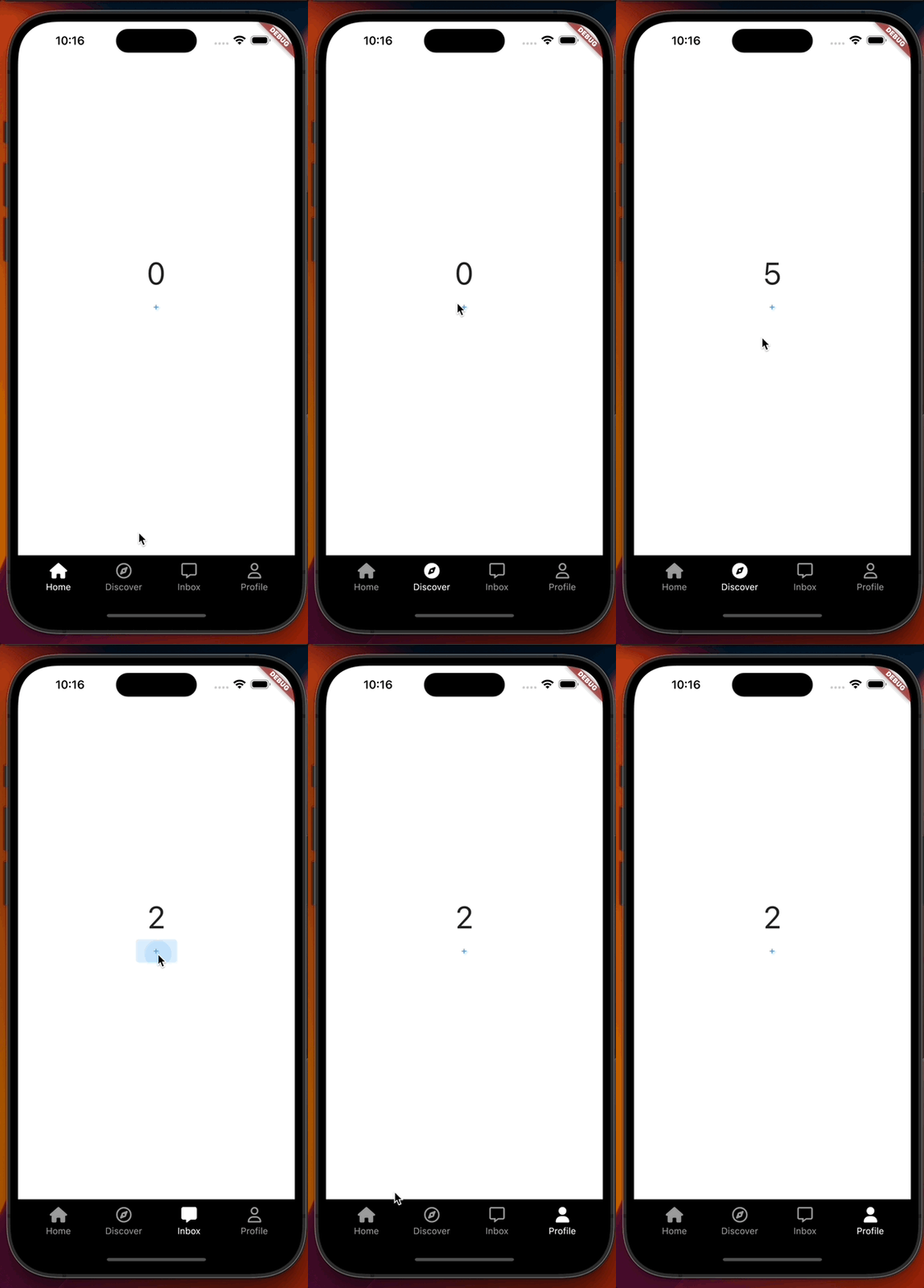
하지만 이걸 과용하면 한 화면에서 처리가 너무 많아져 그 위젯은 절대 없어지지 않을 테니 앱 전체가 완전 느려질 수 있음
6.8 Post Video Button
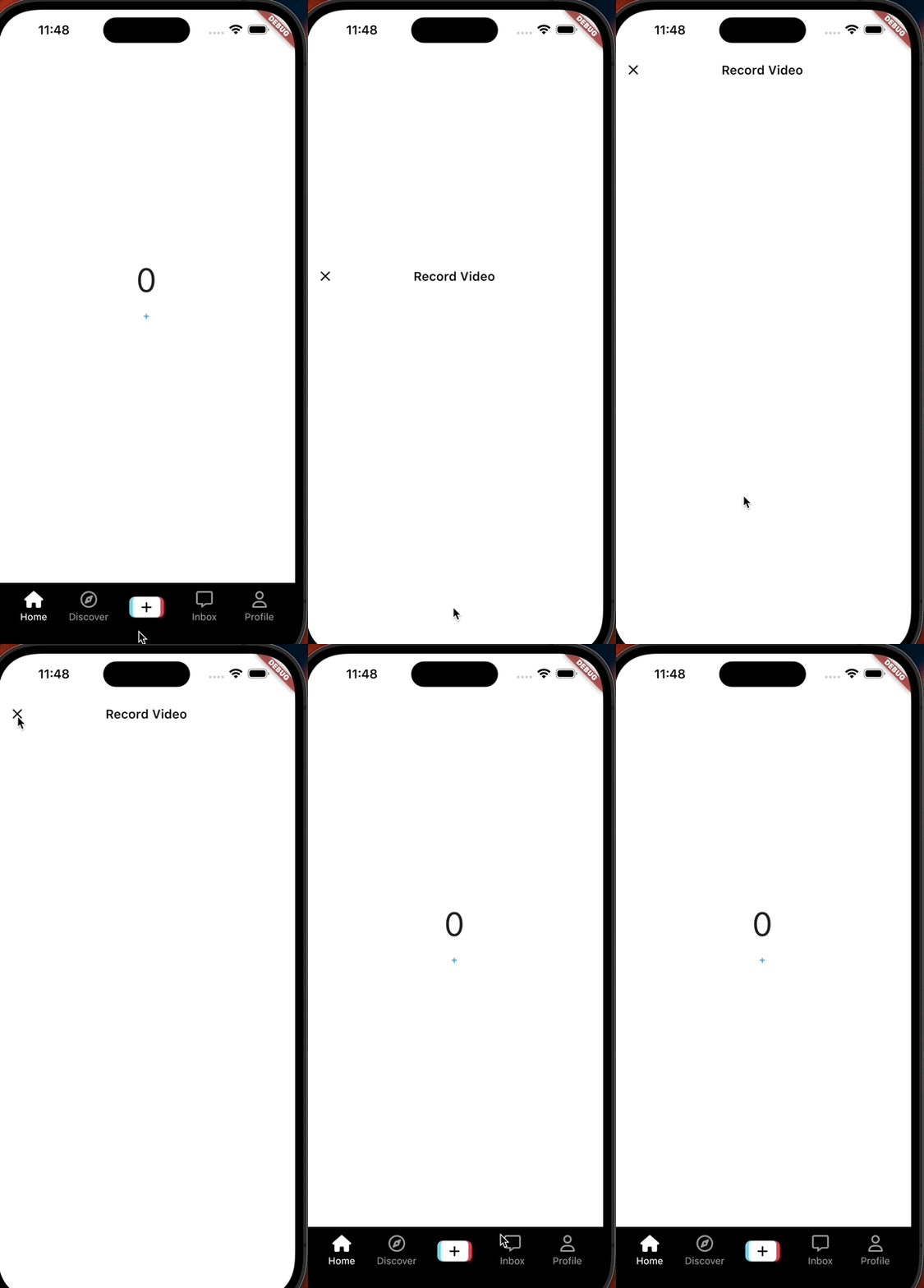
stack overflow되는 elements들은 전부 숨기고 있음(디폴트로 clipping된 상태), 스택 밖에 있는 요소는 다 clipping
  void _onTap(int index) {
    setState(() {
      _selectedIndex = index;
    });
  }
                ---------------------

  //event listener 함수
  void _onPostVideoButtonTap() {
    Navigator.of(context).push(
      MaterialPageRoute(
          builder: (context) => Scaffold(
                appBar: AppBar(
                  title: const Text("Record Video"),
                ),
              ),
          // 전체화면으로 만들어주기
          fullscreenDialog: true),
    );
  }
              ---------------------

  @override
  Widget build(BuildContext context) {


onTap: () => _onTap(1),
              ),

              ---------------------
              Gaps.h24,

              // Event listener
              GestureDetector(
                onTap: _onPostVideoButtonTap,
                child: const PostVideoButton(),
              ),

              Gaps.h24,
                    ---------------------                      ---------------------

              NavTab(
post_video_button.dart로 위젯 분리하기

import 'package:flutter/material.dart';
import 'package:font_awesome_flutter/font_awesome_flutter.dart';

import '../../../constants/sizes.dart';

class PostVideoButton extends StatelessWidget {
  const PostVideoButton({super.key});

  @override
  Widget build(BuildContext context) {
    return Stack(
      clipBehavior: Clip.none,
      children: [
        Positioned(
          right: 20,
          child: Container(
            height: 30,
            width: 25,
            padding: const EdgeInsets.symmetric(
              horizontal: Sizes.size8,
            ),
            decoration: BoxDecoration(
              color: const Color(0xff61D4F0),
              borderRadius: BorderRadius.circular(
                Sizes.size8,
              ),
            ),
          ),
        ),
        Positioned(
          left: 20,
          child: Container(
            height: 30,
            width: 25,
            padding: const EdgeInsets.symmetric(
              horizontal: Sizes.size8,
            ),
            decoration: BoxDecoration(
              color: Theme.of(context).primaryColor,
              borderRadius: BorderRadius.circular(
                Sizes.size8,
              ),
            ),
          ),
        ),
        Container(
          height: 30,
          padding: const EdgeInsets.symmetric(
            horizontal: Sizes.size12,
          ),
          decoration: BoxDecoration(
            color: Colors.white,
            borderRadius: BorderRadius.circular(
              Sizes.size6,
            ),
          ),
          child: const Center(
            child: FaIcon(
              FontAwesomeIcons.plus,
              color: Colors.black,
              size: 18,
            ),
          ),
        )
      ],
    );
  }
}
728x90
반응형
'Programing > Flutter' 카테고리의 다른 글
'Programing/Flutter' Related Articles
more


Comments